Want to use your Apple TV without restrictions without paying for a premium VPN? No worries, I’ve got you covered. I’ve compiled a list of the top free VPNs for Apple TV, considering factors like speed, security, quality, and compatibility.
While a premium VPN service guarantees the best package, there’s no shortage of best free VPN for Apple TV. I’ve personally tested over 60 of them to help you find the right fit.
However, nothing comes entirely free. Although you might save money upfront, you may encounter downsides such as data leaks, slow speeds, and limitations on bandwidth and downloading.
With numerous low-cost premium VPNs on the market, why settle for best free VPN? I recommend ExpressVPN for its lightning-fast speeds and comprehensive packages. Plus, you can explore the full service risk-free with ExpressVPN‘s 30-day money-back guarantee.
While premium services are preferable, I’ve still curated a list of the best free VPNs for Apple TV.
Unfortunately, you can’t directly install a VPN on your Apple TV. Instead, opt for a free VPN compatible with routers. By setting up a VPN on your router, you can use it across all devices connected to your home network, including your Apple TV.
Dive into my in-depth analysis for a more detailed look at each VPN, and rest assured, I’ve avoided repetition and maintained clarity in my recommendations.
Quick Overview: Top Best Free VPN for Apple TV [Updated 2024]
Here are three of the top best free VPN for Apple TV. When it comes to Apple TV and setting up the free Apple TV apps, you can’t do better than these three VPNs.
- ExpressVPN – Best Free Trial VPN For Apple TV : ExpressVPN has some of the best security features and qualities in a VPN. It is so good that you wouldn’t even regret springing for the paid version, although there is a free trial available, which you can use.
- Windscribe – Free VPN for Apple TV with 10GB/Mo Data : Windscribe is a free plan with limitations. Despite that, there are a few better free VPN options in the market competing with Windscribe.
- ProtonVPN – Completely Free VPN Apple TV with Unlimited Data : If there is one VPN capable of outperforming Windscribe, it’s ProtonVPN. It has incredible capabilities for a free VPN and offers unlimited data usage.
Click here for FAQs and here to find out how I choose these VPNs.
Why should I use a Best free VPN for Apple TV ?
Apple TV is a popular streaming service in the US. It is home to many amazing TV shows and movies, but the unfortunate issue is that it is region-locked to the US. So, if you aren’t in the US, you cannot access Apple TV that easily.
You will need the best free VPN for Apple TV to access geo-restricted content. It can easily allow you to sidestep the restrictions and gain access to the streaming service.
Once you’ve connected to a US server through your free VPN, whether you are using a mobile device or any other device, you will easily be able to access blocked streaming services such as Hotstar, Netflix, and hundreds more.
3 Best Risk-Free VPNs for Apple TV – In-Depth Analysis
I thoroughly analyzed three VPNs that are excellent best free VPN for Apple TV. With fantastic features and incredible speeds, Here’s an in-depth look at the top VPNs that can take your Apple TV viewing to the next level.
1. ExpressVPN – The Best Free Trial VPN For Apple TV

- Ultra-fast servers in 105 Countries
- Excellent unblocking capability for Netflix, Hulu & more
- Best-in-class encryption trusted security, and advanced protection features that block ads, trackers, and harmful sites.
- Connect up to 8 devices simultaneously
- 24/7 customer support through live chat
- 30-day money-back guarantee
ExpressVPN is the best Apple TV VPN with free trial. This VPN service performs well and has successfully unblocked censored websites and platforms. Presently, you can avail provides a 30-day ExpressVPN free trial as well.
Servers
ExpressVPN boasts one of the market’s largest VPN networks, including numerous servers spread across 105 countries, with 24 servers in the US.
Unblocking Capabilities
Thanks to its obfuscation servers, ExpressVPN makes accessing blocked streaming services like Apple TV, Disney+, Netflix, HBO Max, Hulu, ITV Hub, BT Sport, and others simple.
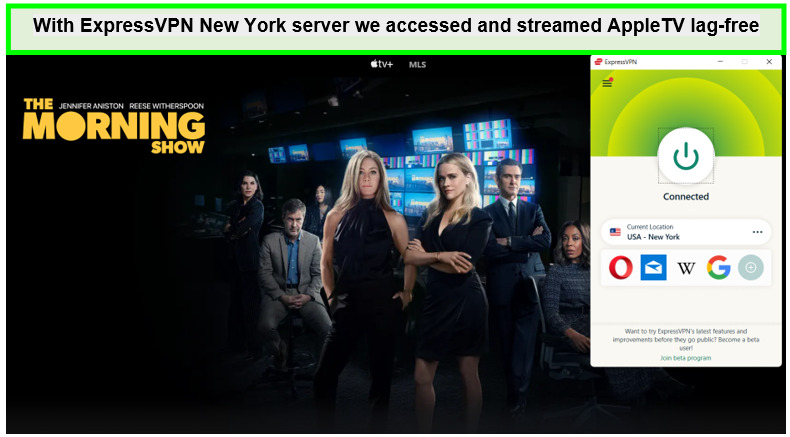
ExpressVPN delivered satisfactory streaming results.
Speed
According to my ExpressVPN speed test, the servers’ download and upload speeds of 89.42 Mbps and 84.64 Mbps with a 100 Mbps connection. Furthermore, ExpressVPN permits peer-to-peer torrenting, allowing you to download anything you want via torrents.
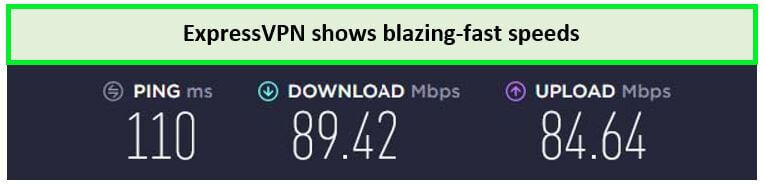
ExpressVPN delivered high speed throughout the streaming.
Security and Privacy
ExpressVPN uses cutting-edge AES-256 Bit encryption technology security features to ensure a secure Apple TV connection. It also adheres to a rigorous no-logs policy and offers extra security features like DNS/IP leak prevention to provide the greatest degree of online safety.
Ease of Use
ExpressVPN is compatible with all popular routers, desktops, laptops, gaming consoles like the PlayStation 4 and Xbox, and streaming devices like ExpressVPN with Samsung Smart TV, Roku TV, Kodi, Apple TV, and Amazon Fire TV Stick, as well as mobile platforms like iPhone and Android.
Along with it, users can easily unblock Apple TV with ExpressVPN also. Moreover, there is 24/7 customer support to assist with any VPN-related queries.
Price
ExpressVPN is a premium service with various subscription tiers available for your convenience. The 12-month plan costs $6.67/mo - Save up to 49% with exclusive 1-year plans + 3 months free a month and is the most economical choice. ExpressVPN also provides a 30-day money-back guarantee and a 30-day free trial, allowing you to try the service before committing.
I recommend reading my thorough ExpressVPN review to learn more about the VPN.
- Blazing-fast speeds with Lightway protocol.
- Cryptocurrency payment options are available.
- Unmatched security protocol.
- Perfect for streaming Apple TV
- Pricey compared to other providers.
- Can be a bit advanced for beginners.
2. Windscribe – Free VPN for Apple TV with 10GB/Mo Data

- Strong Encryption Protocols
- Free Version Offered
- 3 Days Money Back Guarantee
- 50 Server Locations (11 in Free Version)
- Accepts Bitcoin Payments
- Offers OpenVPN encryption
Windscribe is my top option for the best free VPN for Apple TV ; it is supported by a variety of impressive features and provides 10 GB of free data.
Servers
It may have few server alternatives with a network of 68 countries and over 100 servers, but many supported locations make it an attractive VPN option for many customers. Windscribe has 5 free servers including the US, too!
Unblocking Capabilities
Windscribe worked quite well in my tests, offering a secure environment even with its free plan. Through this VPN, users outside the US may access services like Disney+ or Netflix with Windscribe. It also has an ad-blocker to prevent unwanted interruptions during your Apple TV streaming sessions.
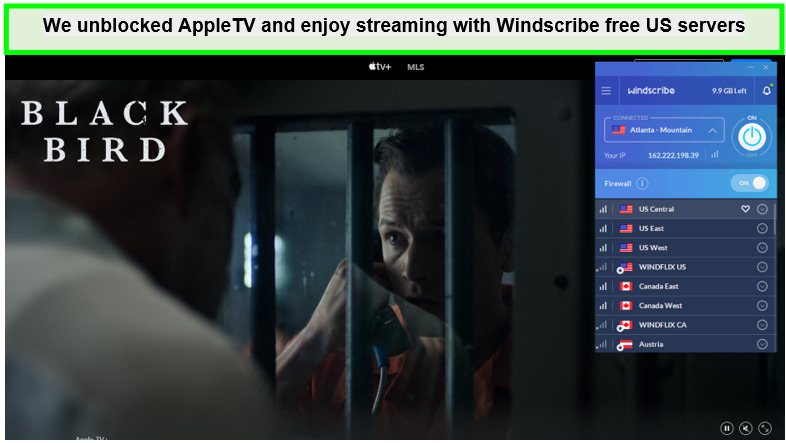
Windscribe gave decent results.
Speed
The download and upload speeds recorded during my Windscribe speed test were 65.21 Mbps and 34.75 Mbps, respectively, with a 100 Mbps connection. For a free VPN of this magnitude, this rate of speed is more than sufficient.
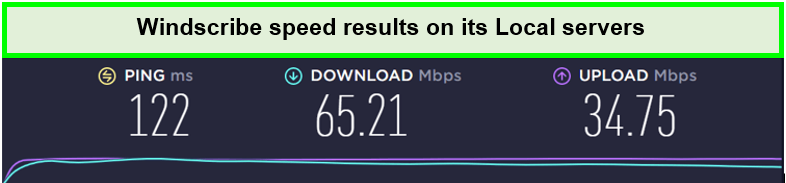
Windscribe speeds were a bit slow compared to ExpressVPN.
Security and Privacy
Several security and privacy-enhancing features are offered by Windscribe, including split tunneling, AES-256 encryption, P2P torrenting, and an automated kill switch. It adheres to a rigorous no-logging policy and provides live chat help 24/7 for potential problems.
Ease of Use
On a range of hardware and operating system platforms, including Windows, Linux, iOS, Android, Roku TV, Kodi, Amazon Fire TV Stick, and various routers, Windscribe may be utilized. It might not work with as many devices as other VPNs, but its selection still offers a respectable choice, given its size.
Price
Although Windscribe offers a 10 GB free VPN service, a paid subscription is necessary to access all its server locations. There is, however, a Windscribe free trial that may be used before choosing.
The 12-month package costs $4.08 a month and is Windscribe’s most affordable choice. Additionally, if you’re unsatisfied with the service, you have a 30-day window to cancel and request a refund according to the Windscribe refund policy.
Check out my thorough Windscribe review to find out more about this VPN.
- Double hop feature.
- Great free plan.
- Only US & UK Netflix is available.
- Slower speeds on macOS.
3. ProtonVPN – Completely Free VPN for Apple TV with Unlimited Data

- Freemium Version to the Users
- Users can Cancel at any Time
- In-built Kill Switch
- Multi-Hoping Capability
- OpenVPN and IKEv2(For Mac)
- Tor Servers
ProtonVPN is an option if you’re looking for the best free VPN for Apple TV. It stands out with unlimited data, bypassing Apple TV Geo-restrictions.
Servers
Even though it has a considerably smaller server network with over 1,700 servers in more than 60 nations, ProtonVPN provides multiple free servers in the US.
Unblocking capabilities
ProtonVPN passed my testing with flying colors despite a few sporadic issues. Proton VPN works with Netflix, Hulu, and Amazon Prime Video.
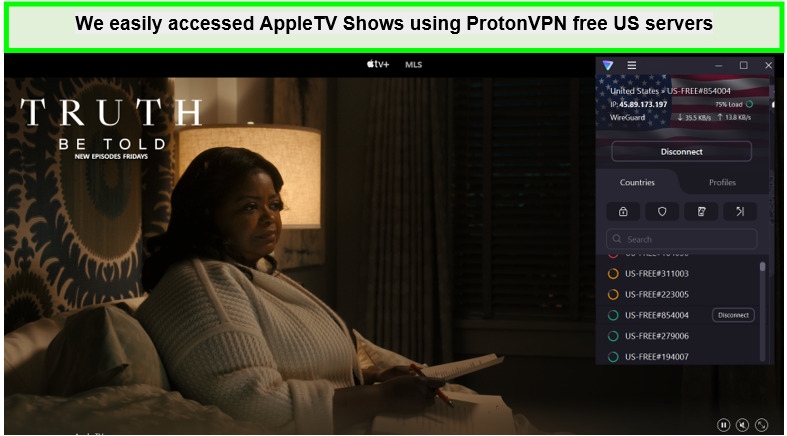
Accessing Apple TV shows was made easy with ProtonVPN
Speed
One of the fastest virtual private network services we’ve tested is ProtonVPN, which offers speeds on par with those of top VPN providers like ExpressVPN. My ProtonVPN speed test revealed that ProtonVPN’s upload and download speeds reached 89.59 Mbps and 75.59 Mbps with a 100 Mbps connection.
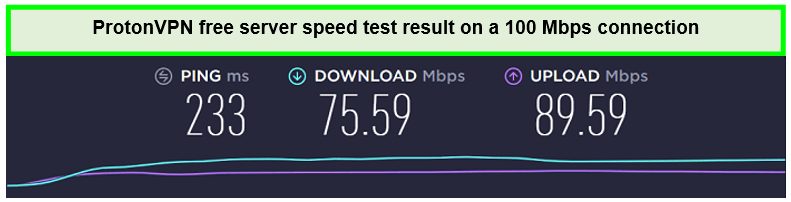
ProtonVPN showed me decent speeds during the test
Security and Privacy
The torrenting capability provided by ProtonVPN is only available through US-based servers and needs a premium membership plan. The VPN features a strict no-logging policy, an automatic kill switch, and sophisticated AES-256 encryption to guarantee your privacy and security, so you need not worry about whether ProtonVPN is safe or not.
Ease of Use
The popular streaming devices Roku TV with ProtonVPN and Windows, Kodi, Linux, and iOS are all compatible with ProtonVPN. The free version only permits one simultaneous connection, whereas the Basic plan enables two, the Plus plan offers ten, and the Visionary plan provides a maximum of ten connections.
Additionally, their live chat service is accessible around the clock.
Price
The 2-year Plus plan is the most cost-effective choice, with a monthly price of around $6.63. There is also a ProtonVPN free trial and a 30-day money-back guarantee that enables you to cancel the service and receive a refund if you feel it doesn’t meet your expectations.
I suggest reading my in-depth ProtonVPN review for a more thorough analysis.
- No data logging.
- P2P functionality.
- Pricing is a bit complicated.
How We Evaluate Best Free VPNs for Apple TV
My testing process is meticulous and designed to identify the best free VPNs for Apple TV VPN. Here’s what I look for:
- Security: I prioritize VPNs with strong encryption and protocols to maintain a secure Apple TV connection.
- Speed: Fast connection speeds are crucial to avoid buffering and ensure a smooth streaming experience on Apple TV.
- Data Allowance: A generous data allowance is important for streaming content without interruption.
- Server Network: A wide range of server locations is key to bypassing Apple TV Geo-restrictions.
- Compatibility: I test VPNs on various devices, including the iPad (9th generation), to ensure a seamless user experience.
- Streaming Capabilities: My recommended VPNs must be able to unblock popular streaming services like Netflix and offer a reliable connection for users to stream on Apple TV with VPN.
How do I set up a free VPN on my Apple TV ?
Windscribe is the top choice for a free VPN to unblock Apple TV. With it, you can easily set up Apple TV and even the best free Apple TV apps quickly and without hassle. Here are a few steps to get started.
- Go to the Windscribe website and register for the VPN. Download the respective app for your device and install it.
- Sign in with the relevant credentials and ensure you are connected to a US-based server.
- Navigate to the Apple TV application and sign up if you haven’t.
- Now, simply search for the TV show or movie you want to watch and begin streaming.
Free VPNs to Avoid for Apple TV
Below are three VPNs that should never be considered when choosing the best free VPN for Apple TV.
- HOXXVPN
HoxxVPN has been repeatedly exposed for selling confidential user information to other parties. Moreover, it has been examined and found lacking in terms of security and privacy, making it extremely risky as a VPN. For more details on this VPN, read my Hoxx VPN review. - HolaVPN
Many customers have reported HolaVPN for harmful behavior. HolaVPN is a very dangerous VPN that has to be avoided at all costs, as it may do everything from displaying annoying advertising to infecting customers’ devices with malware. For more details on this VPN, read my Hola VPN review. - Hide.me
In reality, Hide.me is a proxy rather than a VPN. As a result, it cannot defend users against external dangers like hackers and online attackers. In addition to keeping logs and recording every user’s behavior, it makes those records available to the public, making it much more intrusive. For more details, read my Hide.me review.
More Helpful Guides On VPNRanks :
| Devices | Description |
|---|---|
| Best free VPN for iPhone |
Secure and user-friendly VPNs for iOS devices, enhancing online privacy! |
| Best Free VPN for Samsung Smart TV |
Stream securely on Samsung TVs with compatible free VPN services! |
| Best Free VPN for MAC |
Unlock Boundless Access: your gateway to a secure Mac experience! |
FAQs: Best Free VPN for Apple TV
Is it legal to use a VPN with Apple TV?
Yes, using a VPN with Apple TV is legal in most countries as long as you are not engaging in illegal activities. VPNs are a legitimate tool to protect your privacy and bypass Apple TV Geo-restrictions.
Is there a Best free VPN for Apple TV ?
Windscribe and ProtonVPN are the two best free VPNs for Apple TV in the free VPN market. They deliver in terms of quality, speed, security, and many other metrics. However, for a more reliable experience, consider trying ExpressVPN’s free trial feature.
Can I use a free VPN to stream on Apple TV ?
Yes, you can use a free VPN to stream on Apple TV, although free VPNs may have limitations such as data caps and fewer server locations. Services like ExpressVPN offer risk-free trials that provide a better streaming experience.
Will these VPNs work on all my devices?
Most VPNs, including ExpressVPN, Atlas VPN, and others, offer apps for a variety of devices. Whether you’re using an iPad (9th generation), a gaming console for Red Dead Redemption 2, or other platforms, you can secure your connection with a VPN.
How do I use the ExpressVPN free trial for Apple TV ?
To begin your ExpressVPN free trial, you only need to follow the simple steps listed below.
- Go to the ExpressVPN website and click on purchase.
- Now, simply choose a plan and click on the free trial option.
- Finish the registration process and then download the relevant app.
- Install the app, launch it, and enter your credentials.
- Now connect to a US-based server, and voila. Your free trial is ready to go.
Wrapping Up!
In summary, the best free VPN for Apple TV can be a viable option for those looking to enhance their streaming experience and Secure Apple TV Connection, but it is not without its trade-offs. While free VPNs offer a no-cost solution to streaming on Apple TV with VPN, they often come with limitations in speed, data, security, and the ability to bypass Apple TV geo-restrictions.
Well, you will not be disappointed with any of these three VPNs. Not only are these VPNs tested and secure, but they are also fast and reliable and will ensure a smooth experience. The best free VPN for Apple TV will get you access whenever you want.
ExpressVPN‘s free trial is the best in the market and is my official recommendation. Its immense security features and industry-wide reliability make it great to use. With its 30-day free trial, you can experience it in its true glory.