The Xbox has come a long way from just being a gaming console. Today, you can surf the internet, stream videos, play music, and much more, turning it into a versatile multimedia device. But, with these advancements come increased privacy concerns. The solution lies in using the best VPN for Xbox in New Zealand.
The best VPN in New Zealand helps with privacy, combats bandwidth throttling, maintains low latency and enables access to geo-restricted content, potentially allowing users to purchase games at lower prices by changing their IP location.
It also lets those who use their Xbox primarily as a streaming device for platforms like Netflix to unblock geo-restricted content. In contrast, many other gamers use VPNs to protect their online activity and defend against DDoS attacks.
The advantages are clear, but which Xbox VPN app is the top choice for the Xbox Series in 2024? I’ve evaluated 40+ VPNs to identify the top five for Xbox usage, such as ExpressVPN. Below, you can find the best VPNs for Xbox in New Zealand and learn how to set them up.
Quick Overview – Best VPN for Xbox in New Zealand
Looking for the best VPN for Xbox in New Zealand? Here’s a list:
ExpressVPN – Best VPN for Xbox in New Zealand:
Offers 3000+ servers in 105 countries. It comes with advanced security features like DNS leak protection, split tunneling, a kill switch, AES 256-bit encryption, and more.
➔ Get a special VPN offer today: NZ$ 11.19/mo (US$ 6.67/mo)
Surfshark – Budget-friendly VPN for Xbox in New Zealand:
Offers 3200+ servers in 100 countries. Capable of offering fast speeds on a 100 Mbps connection. Comes with advanced security features like CleanWeb, MultiHop, Whitelister, and more.
➔ Get a special VPN offer today: NZ$ 4.18/mo (US$ 2.49/mo)
NordVPN – Secure VPN for Xbox in New Zealand:
Offers 6000+ servers in 61 countries. Capable of offering fast speeds on a 100 Mbps connection. Comes with advanced security features like Nordlynx, obfuscated servers, kill switch, and more.
➔ Get a special VPN offer today: NZ$ 6.7/mo (US$ 3.99/mo)
IPVanish – Fastest VPN for Xbox in New Zealand:
Offers 2200+ servers in 75+ locations. Capable of offering fast speeds on a 100 Mbps connection. Comes with advanced security features like a kill switch, no logs, DNS leak protection, and more.
➔ Get a special VPN offer today: NZ$ 5.02/mo (US$ 2.99/mo)
Private Internet Access – Reliable VPN for Xbox in New Zealand:
Offers 35000+ servers in 84 countries. Capable of offering fast speeds on a 100 Mbps connection. Comes with advanced security features like split tunneling, a kill switch, DNS leak protection, and more.
➔ Get a special VPN offer today: NZ$ 3.54/mo (US$ 2.11/mo)
Jump to:
Why Do You Need a VPN for Xbox in New Zealand?
You need a VPN for your Xbox in New Zealand as it protects you against DDoS attacks, hide your IP address, unblock geo-restricted streaming content, and access Game Pass in areas where it is not supported.
The Xbox is a powerful and versatile gaming console, but its utility is limited if you can’t download games or stream movies. For example, some movies and TV shows are only available on US Netflix, leaving those paying full subscription prices in other regions with fewer titles.
Similarly, tons of popular games might not be available in your region. It sounds frustrating, but a reliable VPN can resolve this by allowing you to connect to servers worldwide and access geo-restricted content like Netflix, Hulu, BBC iPlayer, and Amazon Prime Video on your Xbox.
Online privacy is essential; leading VPNs enhance it through encryption, IP masking, and offshore jurisdictions. A VPN enables you to mask your IP address and appear as if you are in a different country, allowing you to access regional games and preventing ISPs from tracking your online activities.
Additionally, Xbox One VPNs protect against DDoS attacks by changing your IP address, enabling you to stream and play games without interference from malicious botnets.
5 Best VPNs for Xbox in New Zealand [2024 In-Depth Analysis]
I tested 40+ top VPNs based on their servers, security, unblocking capabilities, and more to figure out the best VPN for Xbox in New Zealand. Out of these, I compiled a list of 5 VPNs that lived up to my criteria for Xbox One in New Zealand:
1.ExpressVPN – Best VPN for Xbox in New Zealand


- Ultra-fast servers in 105 Countries
- Excellent unblocking capability for Netflix, Hulu & more
- Best-in-class encryption trusted security, and advanced protection features that block ads, trackers, and harmful sites.
- Connect up to 8 devices simultaneously
- 24/7 customer support through live chat
- 30-day money-back guarantee
ExpressVPN is the best VPN you can get for Xbox One consoles in New Zealand, thanks to its excellent unblocking ability and compatibility with a wide range of devices.
Even though it is not possible to use this VPN on Xbox directly, you can install ExpressVPN on your router in New Zealand quite easily with its Install Wizard feature that sets up ExpressVPN’s firmware on your router. The ExpressVPN Smart DNS feature lets you enable the VPN’s location-changing feature on your Xbox.
ExpressVPN is a VPN that ensures anonymity on Xbox. It provides a router applet and securely protects your private data. Even a pre-installed VPN is available from FlashRouters. The provider’s website has many manual tutorials for other routers, including particular Asus or Linksys models, allowing you to easily encrypt your Xbox with ExpressVPN in New Zealand.
ExpressVPN offers thousands of servers in 105 countries, which is ideal for players to connect to game servers in various countries. With these servers, you can easily change your IP address and enjoy optimal speeds. You can also prevent DDoS attacks on Xbox with the special protection provided by ExpressVPN’s robust encryption.
According to my ExpressVPN speed test in New Zealand, I received a download speed if 92.26 Mbps and an upload speed of 89.45 Mbps on a 100 Mbps connection.
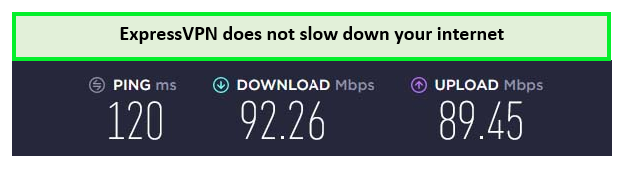
ExpressVPN’s downloading speeds enable easy, fast, and secure gaming in New Zealand.
ExpressVPN protects with security features, including split tunneling, 256-bit AES encryption, DNS leak protection, and a robust kill switch. Its Lightway protocol provides an extra layer of security and speeds up the communication process.
ExpressVPN offers customized iOS, Android, Windows, macOS, and Linux apps. With this VPN, you don’t have to do the configuration manually. You can also purchase pre-flashed routers for your Xbox.
ExpressVPN offers 27/4 live chat support for users to contact if needed. ExpressVPN costs in New Zealand are quite reasonable, and a 30-day money-back guarantee backs all subscriptions.
Those users who wish to test the service out without commitment can do so through the ExpressVPN free trial in New Zealand for up to a week.
I have covered all its features in my detailed ExpressVPN review in New Zealand.
Exclusive Deal:
VPNRanks readers can enjoy ExpressVPN for NZ$ 11.19/mo (US$ 6.67/mo) - Save up to 49% with exclusive 1-year plans + 3 months free
- Best VPN for Xbox Cloud gaming
- Easy router connectivity options
- Hundreds of low-latency servers for smooth gaming
- Have a router applet
- Offers a reliable kill switch
- A no-logs VPN service
- Live chat support 24/7
- Discounts are valid for a short time
2. Surfshark – Budget-Friendly VPN for Xbox in New Zealand

- 3,200+ servers in 100 countries
- RAM-only servers (no hard disks)
- Unlimited simultaneous connections
- Unblocks Netflix and More
- 24/7 Customer Service
Surfshark is a great budget-friendly VPN for Xbox and Xbox Series X in New Zealand. Like most other VPNs, Surfshark doesn’t have an official Xbox app, but you can get Surfshark pre-configured on a router in New Zealand or use its comprehensive router setup tutorials.
Despite being a low-cost VPN, Surfshark offers high-speed servers with low latency. Surfshark offers 3200+ servers in 100 countries. As a result, you will have numerous options for switching to a different IP address and avoiding unforeseen DDoS attacks.
It was a seamless experience to connect to the New York server of Surfshark to unblock streaming platforms and gaming websites to download and play games online using Xbox.
According to my Surfshark speed test in New Zealand, I received a download speed of 81.32 Mbps, and an upload speed of 76.12 Mbps on a 100 Mbps connection.
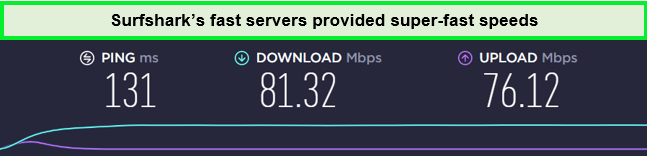
This speed is good enough for lag-free gaming on Xbox in New Zealand.
The fact that the speed of Surfshark Xbox maintains an average of 81% of the original internet speeds is largely due to using the OpenVPN and WireGuard protocols. So, while playing games, you won’t notice any lagging or speed reductions.
Surfshark offers users a variety of security features, including a kill switch, Smart DNS, 256-bit AES encryption, IPv6, WebRTC, and DNS leak protection. It also offers premium features, including CleanWeb, MultiHop, and Whitelister.
Surfshark delivers apps compatible with macOS, Android, iOS, Windows, and Linux. It also offers users the ability to connect unlimited simultaneous devices, which makes it the best VPN for multiple devices in New Zealand.
There is also 24/7 customer support if you face any issues. All Surfshark costs in New Zealand are competitive, and each plan is backed by a 30-day money-back guarantee, thus giving you the option to cancel your membership at any time.
To make the pot even sweeter, you can test the service out for free for up to a week through the Surfshark free trial in New Zealand.
Exclusive Deal:
VPNRanks readers can enjoy Surfshark for NZ$ 4.18/mo (US$ 2.49/mo) - Save up to 77% with exclusive 2-year plan + 30-day money-back guarantee
For more information regarding this VPN, read my in-depth Surfshark review in New Zealand.
- Best VPN for Xbox 360
- Flexible servers to work with Xbox variants
- Unlimited simultaneous connections
- Live chat available 24/7
- Affordable VPN Xbox One in the industry
- Smaller servers network than competitors
3. NordVPN – Secure VPN for Xbox in New Zealand

- 6000 servers in 60 countries
- WireGuard protocol (NordLynx)
- 6 Simultaneous Connection
- DoubleVPN
- 24/7/365 Live Chat Support
- 30 Days Money Back Guarantee
NordVPN is the most secure VPN for Xbox in New Zealand thanks to its advanced security features and high-end encryption. It is the provider with the best router support. While it doesn’t have a native Xbox One app, it is compatible with numerous routers and offers detailed installation guides for 29 routers on its website.
If you don’t want to configure it your router manually, NordVPN offers pre-flash routers for ease. If you only need to change your location, you can use the provider’s SmartDNS feature for VPN-like functionality on your Xbox.
It offers a huge server network of 6000+ secure servers across 61 countries worldwide, cutting-edge security features, and top-notch speeds.
To ensure lag-free gaming, NordVPN offers a dedicated protocol, NordLynx, which delivered a download speed of 83.82 Mbps and an upload speed of 44.64 Mbps during the NordVPN speed test in New Zealand on a 100 Mbps connection.
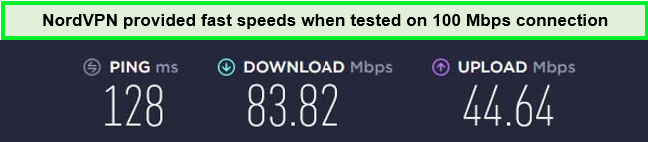
By consistently outperforming in the speed tests, NordVPN proved itself a genuine streaming VPN.
It also comes with some of the best security and privacy features, including an automatic kill switch, Double VPN, and DDoS protection, and it also supports Tor over VPN. With its DDoS protection feature, you can have your dedicated IP address and run your server for gaming.
Whether you’re using Windows, Linux, Mac, Android, or iOS, NordVPN has a custom app. It doesn’t have a native Xbox app, so you can not directly install NordVPN on Xbox in New Zealand. But it is the best VPN to produce compatibility with numerous devices, including Kodi, Roku, and Firestick.
It offers a 24/7 live chat option for any technical assistance. Its prices are quite reasonable, and all plans are backed by a 30-day money-back guarantee. This allows you to cancel your NordVPN subscription in New Zealand if you don’t like the service and get a refund.
You can even test the service out commitment-free for a week through the NordVPN free trial in New Zealand without subscribing to any package.
Exclusive Deal:
VPNRanks readers can enjoy NordVPN for NZ$ 6.7/mo (US$ 3.99/mo) - Save up to 63% with exclusive 2-year plan + 3 months free for a friend
To know more about this VPN provider, read my detailed NordVPN review in New Zealand.
- Multiple low-latency gaming servers are available worldwide.
- Fastest with NordLynx
- Provides dedicated IP addresses for creating a game server of your own
- Threat Protection feature available
- 7-day free trial
- Live chat is available 24/7 to help out the best gaming server
- Free trial available for Android devices only
- Apps UI is a little complex for beginners
4. IPVanish – Fastest VPN for Xbox in New Zealand


- PPTP, L2TP/IPSec & OpenVPN protocols
- 40,000+ IPs & 1000+ servers in 60+ countries
- 10 Multi logins
- 7-Day Money Back Guarantee
- 256bit AES encryption
IPVanish is undoubtedly the fastest VPN for Xbox in New Zealand. It also offers high-speed servers and consistent connection speeds with low pings. With IPVanish, you don’t have to worry about getting slowed down or experiencing latency during online gaming.
In collaboration with FlashRouters, they provide pre-configured VPN options. Additionally, IPVanish offers comprehensive instructions on setting up their VPN on various routers, including DD-WRT firmware, ASUS, and others, which can be found on their website.
IPVanish boasts an extensive server network with 2200+ servers in 75+ locations. This vast server fleet makes finding a location that suits your needs easy, allowing you to change your IP address while maintaining optimal speeds.
Speed is crucial for online gaming and browsing, and IPVanish delivers on this front. It utilizes the OpenVPN and WireGuard protocols, which top VPN providers commonly use.
During my IPVanish speed test in New Zealand, it proved to be incredibly fast, making it an excellent choice for gamers seeking low ping. I recorded an impressive download speed of 86.75 Mbps and an upload speed of 73.67 Mbps on a 100 Mbps connection. This level of performance ensures uninterrupted gaming and smooth browsing experiences.
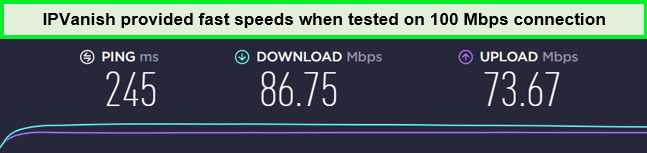
No significant speed drop was recorded during IPVanish speed testing in New Zealand.
The VPN comes with several useful features. One notable feature is traffic obfuscation, which helps hide the fact that you are connected to a VPN. IPVanish also provides a reliable kill switch, which ensures that your internet connection is severed if the VPN connection drops unexpectedly. Additionally, a split tunneling feature allows you to choose which traffic goes through the VPN and which doesn’t.
It is also compatible with Windows, iOS, Android, and macOS. Speaking of connecting multiple devices simultaneously, IPVanish offers unlimited multi-logins.
It offers excellent customer support, so in case you find your IPVanish not working in New Zealand with your Xbox, contact their helpful agents for timely assistance.
The provider offers a 30-day money-back guarantee on all plans, allowing you to try out the service and receive a refund if you want to cancel IPVanish subscription in New Zealand.
Still, if you would rather test the service out before committing, you can do so through the IPVanish free trial in New Zealand.
Exclusive Deal:
VPNRanks readers can enjoy IPVanish for NZ$ 5.02/mo (US$ 2.99/mo) - Get 3 Months Extra + Save 77% on 2-year plan
For more details on this provider, please visit my IPVanish review in New Zealand.
- Optimized servers for Xbox
- Reliable kill switch
- Strict no-logs policy
- Unlimited simultaneous connections
- 30-day money-back guarantee
- Increases price after 1 year
5. Private Internet Access – Reliable VPN for Xbox in New Zealand


- Does Not Keep Any Logs
- 24/7 Customer Support
- 7 Days Money Back Guarantee
- 35000+ Servers in 84 Countries
- SOCKS 5 proxy
- Compatible with Leading Devices
Private Internet Access is a great and reliable VPN for Xbox in New Zealand with excellent encryption and security protocols.
Like most other VPNs, it has no official Xbox app, but you can use its comprehensive router setup tutorials. If you just want to change your location without encryption in New Zealand, you can also take advantage of the provider’s SmartDNS feature to enable VPN usage on your Xbox.
It is highly recommended for Xbox, thanks to its impressive server network of 35000+ servers in 84 countries that provide seamless access to geo-restricted content and fast speeds. This extensive coverage translates to more options for unblocking content and faster server connections due to less congestion.
Gaming demands fast speeds for a buffer-free experience, and PIA delivers. The PIA speed test in New Zealand offered a download speed of 65.78 Mbps and an upload speed of 57.16 Mbps, which is pretty impressive. You can enjoy a seamless internet experience with this reliable speed without lagging.
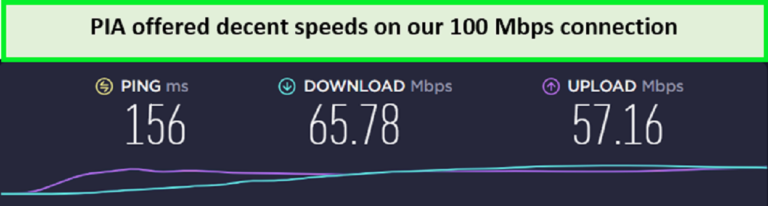
PIA’s servers allowed for smooth gaming in New Zealand.
This means you can enjoy Ultra HD streaming on platforms like BBC iPlayer, Hulu, HBO Max, and Peacock TV without the annoyance of buffering or interruptions. This VPN provider can also unblock Netflix US, Hulu, and YouTube TV in New Zealand.
PIA offers unlimited simultaneous connections and supports various devices and operating systems, including Mac, Android, Windows, Linux, Kodi, Roku, FireStick, and more.
It comes with various security features to prevent DDoS attacks on your Xbox. PIA ensures your connection is secure with AES-256 encryption, DNS/IP leak protection, a kill switch, strong OpenVPN encryption, and split tunneling. PIA’s MACE feature also blocks ads, trackers, and malicious sites, ensuring a clean and secure streaming session.
PIA offers competitive pricing without sacrificing quality and is affordable for users. Its plans are backed with a 30-day refund policy and 24/7 customer support if you need assistance. You can even test it out for free through the PIA free trial in New Zealand.
Exclusive Deal:
VPNRanks readers can enjoy a special PIA offer! NZ$ 3.54/mo (US$ 2.11/mo)
For a detailed guide about this VPN, please refer to the comprehensive Private Internet Access review in New Zealand.
- Smart DNS functionality
- Robust privacy features
- Supports unlimited simultaneous connections
- 30-day money-back guarantee
- Sometimes, the servers get sluggish
- Few advanced configuration features
How to Choose the Best VPNs for Xbox in New Zealand
Some features are essential in a VPN for Xbox in New Zealand if you want to use it for gaming:
- Easy to use – Xbox VPNs must be manually configured with wifi routers. The top Xbox VPNs include manual setup instructions for gaming consoles, making this easier to use in New Zealand. The assistance should be available 24/7 through email and chat help.
- Speed Performance- High-speed servers are essential for uninterrupted Xbox gameplay and streaming. I found the fastest Xbox VPNs with unlimited bandwidth that can help bypass ISP throttling as well in New Zealand.
- Worldwide Servers – You may wish to unblock a country-specific Xbox app. For better speeds, connect to a server near you. The top Xbox VPNs in New Zealand provide servers in dozens of countries, making this easy.
- Security – Xbox Online poses security hazards, including DDoS and swatting. Use a VPN to encrypt your data and mask your IP address and location. All of my VPNs have kill switches and DNS leak prevention.
- Price- Despite delivering all of the above, the best Xbox VPNs are typically cheaper than those without these capabilities. You may test each VPN risk-free with a 30-day money-back guarantee in New Zealand.
Quick Comparison Table: Best VPN for Xbox in New Zealand in 2024
Check out the latest comparison table for the best Xbox VPNs in New Zealand:
| VPNs |  |
 |
 |
 |
 |
|---|---|---|---|---|---|
| Ranking for Xbox One | 1st | 2nd | 3rd | 4th | 5th |
| Avg Speed (Mbps) | 92.26 | 81.32 | 83.82 | 86.75 | 65.78 |
| Total Country Servers | 105 countries | 100 countries | 61 countries | countries | 84 locations |
| Total number of servers | Undisclosed | 3200+ servers | 6000+ servers | 2200+ servers | 35000+ servers |
| Simultaneous connections | 8 | Unlimited | 6 | 7 | Unlimited |
| Pricing | NZ$ 11.19/mo (US$ 6.67/mo) | NZ$ 4.18/mo (US$ 2.49/mo) | NZ$ 6.7/mo (US$ 3.99/mo) | NZ$ 5.02/mo (US$ 2.99/mo) | NZ$ 3.41/mo (US$ 2.03/mo) |
How to Install a VPN on Xbox in New Zealand
Gaming with a VPN becomes necessary when facing serious lag issues on your normal internet. Sometimes, your ISP may be throttling your connection for online gaming.
This is where a VPN comes in quite handy. Unfortunately, Xbox does not have native support for VPNs, and no VPN apps are available for the console. Now I know what you’re thinking, how to use a VPN on Xbox One in New Zealand when there’s no support for it?
Well, you’ll have to rely on indirect methods such as sharing a VPN with your computer or connecting your Xbox One setup to a VPN-enabled router, which can be done in just 5 minutes. Here are some methods that will guide you on how to get VPN on Xbox in New Zealand:
Note: The setup processes for Xbox 360 VPNs, Xbox Live VPNs, and Xbox One VPNs are almost identical.
Share Windows PC VPN Connection with Xbox:
To connect your Xbox to VPN, you must first ensure that your PC has a VPN installed in it. Subscribe to one if you don’t already have one. When you’re done with that, turn on your VPN by connecting to a suitable server, and you are ready to share the VPN on Xbox One.
- Connect an Ethernet cable between your VPN-enabled PC and Xbox One.
- On the start menu, search Run > Type cpl. This will open Network Connection settings.
- You should see a few Ethernet connections here. Right-click the one associated with your VPN and click Properties.
- Selecting Sharing tab > Check the box against the “Allow other network users to connect through this computer’s Internet connection” box.
- Now, click on the Select a private network connection box.
- Select your Xbox One Ethernet connection > Press OK.
- On your Xbox One controller, press the Xbox button.
- Press the RB button thrice.
- Select Settings > Network tab > Network settings > Test network connection.
- Leave the VPN running on your Windows PC to keep your Xbox One connected to a VPN for the duration of your whole session.
That’s it! This is how simple Xbox one VPN setup easy to make gaming more secure and unblock geo-restricted services in New Zealand.
Share Mac VPN Connection with Xbox:
Mac’s Xbox One VPN setup is similar to that of Windows and not difficult to do. Since there is no Xbox One VPN app, you must rely on your Mac to encrypt the connection.
To connect to VPN Xbox One, ensure you have a VPN installed and running on a Mac. From there, follow the steps below to lend a connection from your Mac to your Xbox.
- Connect an Ethernet cable between your Mac and Xbox.
- Navigate to System Preferences > Sharing and click on Internet Sharing from the list on the left of the screen.
- Click Wi-Fi from the share your connection from the drop-down.
- In the “To computers using” list, select Ethernet (if you are connected to the Internet on your Mac via Ethernet, you should share your connection using Wi-Fi instead).
- Check the box next to Internet Sharing on the list to share the VPN between your Mac and Xbox One. The icon will turn green if successfully enabled.
- Follow steps 6 to 9, like above, to successfully connect Xbox to a VPN.
Setting Up Xbox VPN on Router
Routers can be configured to work over a VPN, but only some router firmware and manufacturers support this. Here is how to use VPN on Xbox one with your router:
- Sign up for the best Xbox VPN (I recommend ExpressVPN).
- Go to your Router’s control panel.
- In the control panel, go to Network > Set up > Settings > WAN tab.
- Enter your VPN details (username, password, VPN server address).
- Press Confirm > Accept > Save > Close the control panel.
- Turn on your Xbox One > Go to Settings.
- Select Network.
- Click on Set Up wireless network (your Xbox will show you different wireless networks and ask: Which one is yours?).
- Select your Wi-Fi network and press connect. And that’s it; you are good to go!
Changing the Region on Xbox in New Zealand
Some apps for Xbox One can’t be downloaded unless your region is configured to the correct region. You will first need to change your region to gain access to apps only available within certain areas.
With these easy steps, not only can you use a VPN on Xbox, but you will not need any outside assistance either:
- Start your Xbox console.
- Select My Games and Apps from the Xbox Home Screen.
- Navigate to Apps -> Settings.
- Select System -> Language & Location.
- From Location, choose in New Zealand if you want to download your desired app.
- Restart your Xbox console and connect to a VPN-enabled connection using the same server as the region your Xbox is configured to.
- Now, search for the app you need and download it on Xbox.
Can I Use a Free VPN for Xbox in New Zealand?
Yes, you can use a free Xbox VPN in New Zealand, like ProtonVPN, which allows for cost savings and access to geo-restricted content by masking your IP address. It also adds a layer of security and privacy to your gaming, offering some anonymity and protection against online threats.
However, be aware that free VPNs typically have limitations such as slower speeds due to high user traffic, fewer server locations, which may cause connectivity issues, and data caps that can hinder your gaming experience. Some free VPN services may also log and sell user data, potentially compromising your privacy and online security.
Therefore, I recommend using a premium VPN for Xbox series X in New Zealand, such as ExpressVPN.
VPNs to Avoid While Accessing Xbox in New Zealand
During my testing, I was able to find the best VPN for Xbox in New Zealand. However, not all providers are reliable or safe enough to be used. Here are some providers it’s best to steer clear of:
- Hola VPN: Streaming or gaming on a Hola VPN might put your data in danger because Hola sells user activity behavior. It’s cheap, but it reveals all of your online activity, personal information, and credit card numbers. Read an in-depth review on Hola VPN in New Zealand to help you learn more.
- Hoxx VPN: Hoxx VPN has a terrible reputation for exposing user information. The problems with this VPN include slow connections, inability to connect to Xbox, and a lack of privacy. Read an in-depth review on Hoxx VPN in New Zealand to help you learn more.
- HideMyAss: This VPN has a large user base and promotes itself as the best free VPN for Xbox. Unfortunately, it did not perform well in my tests. There has been a background of unsecured information transfer and IP address disclosure. Read an in-depth review on HMA VPN in New Zealand to help you learn more.
More VPN Guides by VPNRanks
- Best VPN for FireStick in New Zealand: Secure your Firestick streaming Experience.
- Best VPN for Comcast Xfinity in New Zealand: Bypass throttling and speed up your internet connection.
- Best Apple TV VPN in New Zealand: Stream your cherished content on Apple TV.
- Best VPN for iPad in New Zealand: Enhance your iPad experience with a premium VPN.
- Best iPhone VPNs in New Zealand: Experience seamless privacy on your iPhone with a top VPN solution.
- Best VPN for Mac in New Zealand: Unleash boundless possibilities on your Mac with a VPN.
FAQs – Best VPN for Xbox in New Zealand
Can I put a VPN on my Xbox One in New Zealand?
No, you cannot directly install a VPN on your Xbox One in New Zealand. However, you can connect your Xbox One to the internet through a VPN-protected Wi-Fi router, computer, mobile hotspot, or any other internet-sharing device that supports VPN connections.
What is the best VPN service for Xbox in New Zealand?
The best VPN service for Xbox in New Zealand is ExpressVPN, which offers fast internet speeds for gaming, a wide selection of servers, and excellent compatibility with streaming services. NordVPN is also highly recommended as the fastest VPN for Xbox and other devices.
Does NordVPN work on Xbox?
Yes, NordVPN works on Xbox, but not directly. You cannot install NordVPN directly onto the Xbox. Instead, you can set up NordVPN on your router, create a VPN-protected hotspot, and then connect your Xbox One to that network.
How do I get no lag VPN on Xbox in New Zealand?
To get a no-lag VPN on your Xbox in New Zealand, you do not need to install any VPN software. Instead, simply change the DNS settings on your Xbox to use an IP address with ExpressVPN, which you will receive upon subscribing to their service.
Can you get a VPN on Xbox?
No, you cannot directly install a VPN on your Xbox. However, you can connect your Xbox to the internet through a VPN-protected Wi-Fi router, computer, or mobile hotspot, or any other device that supports VPN connections.
Will a VPN help improve speeds on Xbox in New Zealand?
No, a VPN will not typically improve speeds on Xbox in New Zealand as it reroutes your data through a VPN server, taking a longer route and potentially slowing down your connection slightly. However, premium VPNs like ExpressVPN can provide good internet speeds with robust security features.
A VPN can also prevent bandwidth throttling from your ISP by masking your internet activity, which may help maintain consistent speeds. You might consider trying different VPNs that offer 30-day money-back guarantees to find the one that offers the fastest connection speeds for your needs.
Can you use a VPN on Xbox Series X in New Zealand?
Yes, you can use a VPN on Xbox Series X, but not by directly installing it on the console. The best method is to install the VPN on your Wi-Fi router, which allows your Xbox Series X to connect to the internet through the VPN-protected network.
Wrapping Up!
Nowadays, gaming consoles are not only limited to just playing games. With gaming consoles like PS4 and Xbox now supporting 4K output, you can even stream ultra HD movies.
But there’s one thing: many popular gaming titles and movies are often geo-restricted. To unleash the full potential of your console and keep your privacy protected, you’ll need to opt for the best VPN for Xbox in New Zealand.
ExpressVPN is my top choice for this. This VPN comes with a variety of security features, effective to prevent all cyberattacks, fast speeds, excellent unblocking capabilities, and more for users on Xbox in New Zealand.