Buffering issues can be extremely frustrating, especially if you’re binging on your favorite season or a movie you’ve desperately been meaning to watch.
There can be multiple reasons for these occurrences; such as your FireStick, the stream, or simply your internet.
If we dive into technicalities, then a buffer is basically a reserved memory area where video data is downloaded. The video is required to be paused until more of it is downloaded when you play the video faster than it is downloaded into the reserved memory area.
This is what’s commonly called buffering. In this guide, we’ll tell you how to stop buffering on FireStick in UK and its various versions, including Fire TV Cube, Fire TV Stick Lite, FireStick 4K, and older devices.
How to Stop Buffering On FireStick in UK
Here are a few ways how to stop buffering on FireStick in UK, now that you know the potential reasons you may be facing it. However, do keep in mind that before trying out any of the solutions below. you should check your internet connection.
If your internet isn’t the issue then follow the fixes below. Please note that some instructions may differ as all FireStick and Fire TV versions have slightly different menus and settings.
1. Reboot Your FireStick in UK
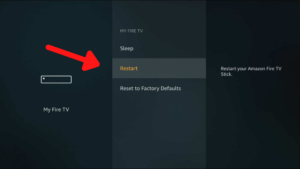
A quick FireStick reboot is mostly the answer to all buffering problems. It provides you with a clean slate after shutting down all the running applications and services.
Here is how you can reboot your FireStick device:
- Turn on your FireStick.
- Click Settings from the top menu.
- Choose My Fire TV after scrolling towards the right.
- Then, choose Restart.
- When prompted to confirm, click Restart again.
2. Check and Improve Your Wi-Fi
You can always check how strong your internet connection really is before taking the appropriate steps to improve it.
Here is the step-by-step guide to checking your Wi-Fi signals in UK:
- Visit Settings from the home screen of your FireStick.
- Choose Network.
- Check the Wi-Fi network you’re connected to.
- You will find the Signal Strength displayed on the right. The strength should be Very Good.
If your connection is anything below Very Good, then you need should consider getting a wi-fi extender. You can also try moving your FireStick closer to where your Wi-Fi router is placed or disconnecting other devices connected to the Wi-Fi network.
A lot of Wi-Fi networks offer frequencies of both 2.4 GHz and 5 GHz. Even though 5 GHz is speedier than the former, its range is shorter.
3. Use a reliable VPN
A VPN is another super-effective method to stop buffering on FireStick in UK. It encrypts all the user data and eliminates your internet service provider from throttling your internet speeds. Using a trustworthy VPN conceals all your online activities, ensuring your ISP cannot discriminate your streaming traffic from other online activities. Consequently, ISPs are unable to throttle speeds.
However, our suggestion is to opt for a top-notch VPN service that ensures benefits without any drawbacks. This involves selecting the best VPN for Firestick in UK, which provides a seamless application, a user-friendly experience, and unrestricted bandwidth on the connection.
If you ask us, then our top recommendation is ExpressVPN – the overall best VPN for streaming in UK, coming with fantastic speeds, a wide server network, and top-notch security and anonymity.
This VPN offers a dedicated app for FireStick and one-click connectivity to users, making installing ExpressVPN on FireStick in UK a super-easy process.
Furthermore, the ExpressVPN Speed tests in UK are mind-blowing. While connected to its server, we enjoyed streaming multiple episodes of Schitt’s Creek without a hint of buffering.
In fact, we enjoyed streaming on FireStick all day and did not face a single delay. Its speed test delivered an average speed of 85.62 Mbps on a 100 Mbps connection.

If these are the speeds we’re getting, then what more would we want from a VPN?
You can get ExpressVPN at a cost of just GB£ 5.32/mo (US$ 6.67/mo) - Save up to 49% with exclusive 1-year plans + 3 months free and offers a risk-free 30-day refund policy for service testing. Want more information about the VPN before making the actual purchase? Simply go through our detailed ExpressVPN review UK.
4. Use an Ethernet Cable
If you tried all the methods to improve your Wi-Fi speeds but nothing worked, then you need to connect your Fire TV to an ethernet cable. This would ensure strong speeds and low chances of them getting lost in transmission.
5. Clear Your App Caches and Data on FireStick
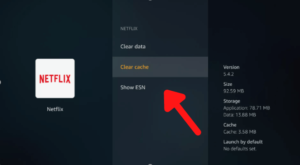
For storing data and other instructions, computer memory is used called cache by applications. Often, some applications end up collecting a lot of data, which fills up all the space of the FireStick. This is why you need to clear all the stored data of the apps.
Here is how you can clear your app cache on FireStick:
- Go to Settings from the home screen.
- Choose Applications > Manage installed applications.
- Choose an App that has stored too much cache.
- Click on Clear cache and Clear data options, whichever is necessary.
6. Opt for a Video Quality That’s Lower
The higher the video quality, the more bandwidth and resources it would require for streaming. Some video players select the playback quality themselves, while others let you choose the one you’d prefer.
If the latter is your case, then you can easily choose from the following video resolutions: 4K, 1080p, 720p, or 480p. Lower bandwidth would result in less buffering and require less bandwidth.
7. Turn Off All Unnecessary Background Apps and Processes
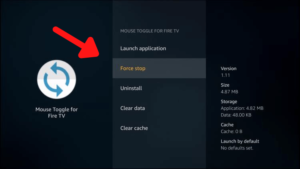
Sometimes, shutting down all the processes and background applications may be the ultimate solution how to stop buffering on FireStick in UK. Apps left running in the background unknowingly consume a lot of bandwidth and resources of the system.
Follow the steps below to shut down all background apps/processes:
- Head over to Settings from your FireStick’s home screen.
- Click on Applications.
- Then, tap on Manage installed applications.
- Click on the application you want to shut down.
- Select Force Stop/Uninstall as needed.
8. Disconnect the Devices Consuming Too Much Bandwidth
If there’s a central Wi-Fi network at your house and you’re connected to that, then there may be multiple other devices consuming a lot of bandwidth, leaving nothing for your FireStick in UK.
These other devices may be performing tasks like installing updates, downloading heavy files, torrenting, or streaming videos.
For making the most of your streaming experience, you need to disconnect a few devices from the Wi-Fi network so most of the bandwidth is being consumed by your FireStick, and you enjoy a bufferless experience.
9. Update the Fire OS and Applications
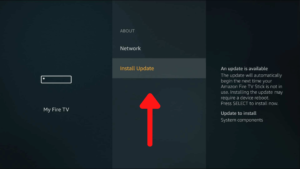
To receive the best security, speeds, and performance, you need to update your Fire OS and apps from time to time. Usually, these update themselves, but if you still want to force an update, then follow the steps below:
- From the home screen, go to Settings > My Fire TV > About.
- Select ‘Install Update‘ after scrolling down a bit.
- You might have to reboot your Fire device for this.
If the apps on your FireStick have been downloaded through Amazon App Store in UK, then they’d update automatically. But if you’ve used any third-party source, then follow the same procedure as downloading to update these apps.
10. Keep Your FireStick Cool
Various heavy apps and processes running on your FireStick for a long time can make the device hot. This issue can affect performance and cause buffering while streaming in UK.
Televisions generate heat and transfer it to FireSticks. So, it’s important to let your Fire device breathe for a while. You might want to opt for another HDMI extender or HDMI port.
11. Factory Reset Your FireStick
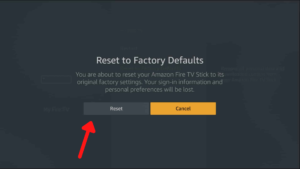
If none of the solutions work for you, then you’re bound to opt for the last resort – factory resetting your FireStick in UK.
Factory reset means that all your data, files, and apps will be deleted, so in case you need to make any backups, please do it prior to the reset. While the process sounds extreme, it eradicates all issues including buffering and malware.
Here is how you can factory reset your FireStick in UK:
- Visit Settings from your home screen.
- Go to My Fire TV.
- Choose Reset to Factory Defaults after scrolling down.
- Press Reset.
Why Do Shows on My FireStick Keep Buffering in UK?
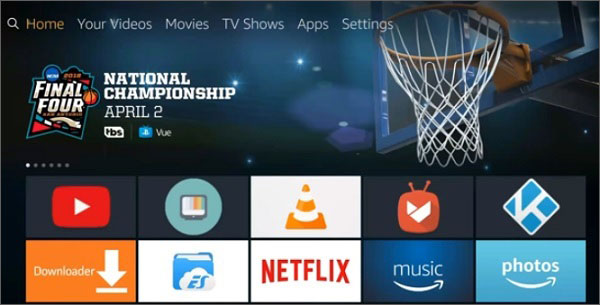
When you start streaming a TV show on your FireStick in UK, your device downloads a wide chunk of content and stores it on your device.
When you end up streaming the downloaded chunk of the video way before the rest of the part is downloaded, your Amazon FireStick displays the buffering icon on your screen.
The device immediately stops the video from playing while downloading the next part of the video for you.
There are multiple reasons for your shows to buffer on FireStick:
1. Poor internet connection: Sometimes the internet connection you have at home is slow enough that it’s unable to handle video streaming.
2. ISP throttling: Another potential reason is your internet service provider (ISP) throttling your internet to reduce your downloading speeds. This is a regular practice, but binge-streamers have become smarter and bypass ISP throttling in UK within seconds.
3. Limitations of hardware: If there are any issues with your Amazon FireStick, modem, router, or Ethernet cable, then you might face buffering on your connection.
4. Server malfunctions: The server hosting the TV show you’re streaming could malfunction or may be operating slowly.
Other Related Guides By VPNRanks
- Firestick Remote not working in UK: Unlock the secrets behind your Firestick remote’s erratic behavior.
- How to update Firestick in UK: Stay up to date with your Firestick with our easy update guide.
FAQs – How to Stop Buffering on FireStick in UK
What causes buffering on Firestick in UK?
The most common reason for a buffering FireStick is a slow internet connection in UK. If other devices at your home are being used for streaming, downloading heavy files, or torrenting, then you might face a buffering issue on your FireStick.
Other common reasons include ISP throttling, low FireStick RAM, outdated Fire OS, and other hardware limitations.
How to stop buffering when streaming on FireStick in UK?
There are multiple ways you can know how to stop buffering on FireStick in UK while streaming. These include restarting your FireStick, shutting down all unnecessary apps, updating your OS, using a VPN, opting for an ethernet cable, and more.
How do I stop buffering on FireStick Cinema APK in UK?
To fix buffering on Cinema APK on your FireStick in UK, you need to do the following:
- Use Cinema APK on FireStick with a virtual private network.
- Clear the Cinema APK cache.
- Use Real Debrid with Cinema APK.
Wrapping Up!
These are all the effective solutions we have for fixing the buffering issue on FireStick. None of these are super-difficult, but they do require a bit of time.
However, using our step-by-step guides on how to stop buffering on FireStick in UK, you’d do an excellent job, easily fix your problem, and have a streaming experience without any delays.
We really hope that our guide was helpful to you. In case you face any issues, feel free to drop your query in the comments below and we’ll get back to you. Cheers!