If you use a Comcast router, you may need its IP address to access its web interface for tasks like setting up port forwarding, changing passwords, managing user limits, or removing unwanted network users.
While most Xfinity routers initially use the default IP address 10.0.0.1, any changes to default settings make it essential to locate the correct IP address to access and manage your router’s web interface.
If you’re unsure how to find Comcast IP address in Netherlands, consult my detailed step-by-step guide for assistance. Once you have the IP address, logging into your router’s web panel to adjust settings to meet your needs becomes straightforward.
So, without further ado, let’s begin.
How to Find Comcast IP Address in Netherlands [Step-By-Step Guide]
Identifying the IP address for an Xfinity router is a common necessity, whether for network settings management or troubleshooting. I’ll guide you through finding your Comcast IP address in Netherlands on various devices and operating systems:
1. Accessing the Configuration Page of Your Router:
To find your Xfinity IP address through your router’s configuration page, follow these steps:
- Connect your device to the Xfinity router using a wired or wireless connection.
- Open a web browser and enter your router’s gateway IP address, typically “192.168.0.1” or “10.0.0.1”. Check the router’s manual if these don’t work.
- Press Enter to access the login page and insert your router’s username and password.
- Once logged in, navigate to the settings or advanced options to locate the network information section.
- Find the IP address listed, often labeled as WAN IP, Internet IP, or public IP.
- Note this IP address as it is your Xfinity IP.
2. Using the Xfinity Account Portal:
To find your Xfinity IP address through the online account portal, follow these steps:
- Open your web browser and navigate to the Xfinity website.
- Log in with your username and password.
- Head to the account or settings section.
- Locate the network or internet settings area.
- Your Xfinity IP address will be displayed within the network settings.
- Note down the IP address for your records.
3. Using Command Prompt or Terminal:
For those who prefer using command-line tools, you can determine your Xfinity IP address using Command Prompt on Windows or Terminal on Mac and Linux. Here are the steps for each operating system:
For Windows users:
- Press Windows Key + R to open the Run dialog box.
- Type “cmd” and press Enter to launch Command Prompt.
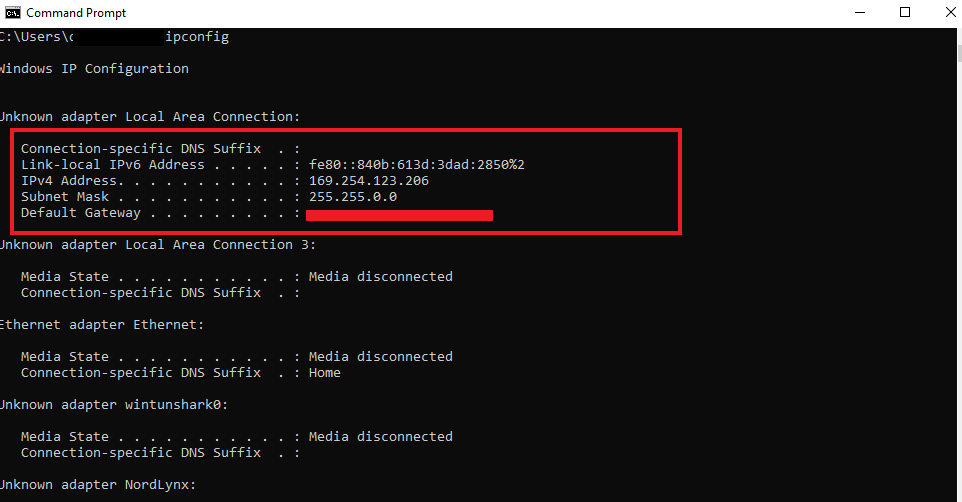
- Enter “ipconfig” and press Enter.
- The “Default Gateway” listed is the Comcast router IP.
For Mac users:
- Open Terminal through Finder > Applications > Utilities.
- Enter “netstat -nr | grep default”.
- The default gateway displayed is your Comcast router IP.
For Linux users:
- Open Terminal.
- Type “ip route | grep default”.
- The default gateway shown is the Comcast IP.
Accessing the IP Gateway Configuration in Netherlands
To access the IP configuration pages of the IP Gateway of your Comcast router, enter your current LAN IP, if you changed the settings, into the address bar of your browser. If not, you can use the default IP, i.e., 10.1.10.1. Make sure your device is connected to the internet through the Gateway.
You will now see the login page. Enter your username and password to access the configuration panel of your Comcast modem.
IP Setup
The Gateway on Comcast is configured to use private IP addresses by default. These act as a DHCP server. If you have logged in to your router panel, you can change the Gateway’s default LAN IP using the following method:
- Open your browser and enter your LAN IP address. The default LAN IP address of the Gateway is 10.1.10.1.
- Enter LAN Subnet Mask. The default LAN subnet mask for 255 IP addresses is 255.255.255.0. When your LAN IP address is 10.1.10.1, the subnet mask is 255.255.255.0. Devices connected to the Gateway LAN can use any IP address between 10.1.10.0 to 10.1.10.255.
- Enter the Domain Suffix. Your default domain name will be wp.comcast.net.
- Enable LAN DHCP. This setting is checked by default, but in case it is not checked, follow the steps below:
- Select Lease Time for IP addresses on the LAN DHCP server assigned to you. The default lease time is set at 1 Week.
- Enter DHCP Start IP. The default starts IP address is 10.1.10.10.
- Enter DHCP End IP. The default End IP address is 10.1.10.199.
- Assign DNS Manually. This option is unchecked by default. If it is unchecked, the Gateway will assign you the default DNS server you currently use on your Comcast network. If the option is checked, you can manually define the DNS servers:
- Enter the Primary DNS server assigned to LAN devices.
- Enter the Secondary DNS server assigned to LAN devices.
- Select Apply.
How to Log In to Your Comcast Router in Netherlands?
Logging into the Comcast router enables you to manage various network settings. Here’s how to gain access:
- Connect your device to the Comcast network.
- Launch a web browser and enter the Comcast router IP address in the address bar.
- When prompted, enter the default login credentials or your personalized username and password if previously changed.
- Once logged in, you can access the router’s admin panel for configuration.
Static Routing Setup
Configuring IP setup and Static Routing setup on a Comcast router is essential for improving network management and performance. Here’s a detailed guide on customizing IP settings and setting up static routing:
Changing LAN IP Settings:
- Log into the router interface using the Comcast router IP address.
- Locate the LAN settings area.
- Update the IP address and subnet mask as required.
- Save the changes to update the network configuration.
Setting Up Static Routing:
- Access the router configuration interface by entering the Comcast router IP into a web browser.
- Look for ‘Static Routing’ settings in the router’s admin panel.
- Enter the necessary details for the static route: name, destination IP, subnet mask, and gateway IP.
- Assign a metric value to define the priority of the route.
- Save the changes to enforce the new static route.
Static routes are beneficial as they ensure data packets follow a particular path, improving your network’s efficiency. This setup is particularly advantageous for businesses requiring consistent routing for security and performance.
How to Safeguard Your IP Address from Blacklisting in Netherlands
Protecting an IP address from getting blacklisted is essential for maintaining uninterrupted internet access and ensuring network security. Blacklisting can occur if an IP address is associated with malicious activities or if there are too many login attempts in a short period. Here are the steps to safeguard an IP address:
- Use Antivirus and Anti-Malware Software: Regularly scan devices with reliable antivirus and anti-malware software to prevent infections that can lead to an IP address being used for malicious activities.
- Secure Email Practices: Follow best practices for email sending, like using confirmed opt-in methods for subscriptions and promptly removing bounced or unsubscribed email addresses. This helps prevent being marked as a spammer.
- Monitor Network Activity: Watch for any unusual activity or sudden spikes in email or data transfers that could indicate a compromised system. Network monitoring tools can help analyze traffic patterns.
- Use a VPN for Added Anonymity: A VPN service can provide an additional layer of security by masking the actual IP address with one of their servers’ IPs. This helps protect the Comcast router IP or Xfinity IP address from being directly exposed and blacklisted.
- Keep Software Updated: Devices and software should have the latest security patches to close vulnerabilities that unauthorized parties could exploit.
- Educate Users: Stay informed about the latest phishing scams and educate network users to avoid clicking suspicious links or downloading from unreliable sources.
By implementing these measures, the risk of having a Comcast IP or Xfinity IP address blacklisted can be minimized, leading to a more secure and reliable internet experience.
How to Find Comcast IP Address According to Reddit?
While the steps mentioned above are the ultimate solutions to finding your Comcast IP address, Redditors have much to say about getting a new one. Following are the insights I received through a Reddit thread on how to get a new Comcast IP:
- Contacting Comcast support is not very helpful.
- Turning off your modem and router for extended periods typically does not work.
- Changing the MAC address on your router might be successful, but Comcast may lease IP addresses for long periods, making it difficult to get a new one.
Comcast Public IP Practices
Carrier Grade Network Address Translation (CGNAT) can complicate port forwarding for many users. Here’s what Redditors have to say about the public IP practices by Comcast:
- Comcast hands out public IPs to most customers. This is because they have a large pool of IPv4 addresses.
- Other ISPs typically use CGNAT by default, which means customers share a public IP address.
- IPv6 is a newer internet protocol version that is not yet widely used, but it will eventually replace IPv4.
How to Reset My Comcast Xfinity Router in Netherlands
Resetting a Comcast Xfinity router can resolve various connectivity issues or is necessary if the login credentials are forgotten. Here’s a detailed guide:
- Locate the Reset Button: Find the reset button on the back of the router, which is typically recessed to prevent accidental resets.
- Initiate Reset: Press and hold the reset button for 30 seconds using a paperclip or similar tool.
- Wait for Reboot: After releasing the reset button, wait for the router to reboot, which may take a few minutes. The stabilization of the router lights indicates the completion of this process.
- Reconfigure Router Settings: Post-reset, reconfigure the router settings since it will revert to factory defaults. Secure the network by changing the default admin username and password.
This procedure should be considered a last resort due to erasing all current settings, but it can be a necessary troubleshooting step.
More Guides on IP Addresses By VPNRanks
- How to find your IP address on Linux in Netherlands
- How to change the IP address on Android in Netherlands
- How to find someone’s IP address on Mac in Netherlands
- What is your private IP address in Netherlands
FAQs – How to Find Comcast IP Address in Netherlands
Can I locate my Comcast IP address via the Xfinity Mobile app in Netherlands?
While the Xfinity mobile app provides various account management features, it does not directly reveal your router’s IP address in Netherlands. To locate the IP address, you’ll need access to the router’s configuration page via a web browser.
What should I do if I’ve forgotten the Comcast Router’s login credentials in Netherlands?
A factory reset is necessary if you’ve changed and forgotten your router’s login credentials in Netherlands. This will restore default settings, allowing you to use the initial username and password, typically found on the router or in the user manual.
How to access the web interface of your Comcast Router in Netherlands?
To access your Comcast router’s web interface in Netherlands, enter the router’s IP address into a browser’s search bar. Next, enter the default username and password when prompted to manage your router’s settings.
What are the typical IP addresses for Comcast Routers?
Several IP addresses are commonly used for Comcast routers, including 10.0.0.1, 192.168.1.1, 192.168.0.1, and 192.168.100.1. Check your router’s manual or label for the specific IP address.
How do I access my Comcast router?
Using a laptop, phone, or tablet connected to your network, open a web browser and navigate to the Admin Tool at http://10.0.0.1. If you have previously updated your Admin Tool credentials, sign in using your customized username and password.
How do I log into my 192.168 1.1 IP address?
Follow these steps to log in to 192.168.1.1:
- Connect your PC to your router.
- Open the web browser and type 192.168.1.1 into the address bar > click Enter.
- Enter the default username and password.
- That’s it. You can now adjust the settings of your router online.
What are the default username and password for the Comcast router?
the default username and password for the Comcast router are ‘admin’ for the username and ‘password’ for the default password. If these don’t work, you can find the default login details in the user manual or contact customer support for details.
How do I find my Comcast business static IP address?
Log into My Account and select your Business Internet service from your list of subscriptions. Only the Primary Manager and Services Manager can view Static IP details. The range of usable Static IPs is in the Static IP Address section.
Wrapping Up!
That’s everything on my how to find Comcast IP address in Netherlands guide. Understanding your Xfinity IP address is crucial for effective network management and optimization.
Familiarizing yourself with the various methods to locate your Xfinity IP address enables you to address connectivity issues, adjust network settings, and improve your network’s security.
With this knowledge, navigate the complexities of networking more confidently, ensuring a smoother and more secure online experience.