
Are you facing problems while linking a VPN with your TP-Link router in Spain? Do all TP-Link routers support VPN? Fret not! In this TP-Link router setup guide in Spain, we will answer all your pressing questions, so make sure to read the whole blog.
In a world where privacy is becoming increasingly scarce, setting up a VPN is essential for anyone who values online security. A premium VPN service can protect your internet connection from prying eyes, safeguard your personal information from potential hackers, and allow you to access geo-restricted content by changing your IP address in Spain.
But setting up a VPN on your devices individually can be tedious and time-consuming. Luckily, there’s a solution – you can set up a VPN on your TP-Link router in Spain. This will enable all devices on your network to benefit from the VPN without any additional setup required.
However, we understand that configuring a router can be a daunting task, especially for those who are not tech-savvy. That’s why we have created a comprehensive TP-Link router VPN setup guide in Spain that will take you through the process step-by-step. Whether you’re a beginner or an experienced user, our updated 2023 tutorial will make it easy for you to set up a VPN on your TP-Link router.
So, why wait? Protect your online activities and keep your personal information safe by following our guide to set up a VPN on your TP-Link router and how to use TP link router VPN in Spain. It’s time to take control of your online security and privacy, and we’re here to help you every step of the way.
TP-Link router VPN setup guide in Spain – Requirements
Before you start TP link router VPN server setup in Spain, you’ll need to ensure that you have the following requirements:
- You Have a Working Internet Connection You’ll need a working internet connection to connect to the VPN.
- VPN Supported TP-Link router: You’ll need a TP-Link router that supports VPN functionality. Not all TP-Link routers support VPN, so make sure to check the specifications of your router before proceeding.
- A Premium VPN service subscription: You’ll need to sign up for a VPN service and have your login credentials handy. There are many VPN services available, such as ExpressVPN, NordVPN, and Surfshark. We highly recommend ExpressVPN.
How To Install a VPN on TP-Link Wi-Fi Router in Spain? A Step-by-Step TP-Link Router VPN Setup Guide
Here’s a step-by-step guide to install VPN on a TP-Link router in Spain.
- Visit the TP link official site, and log in with your TP-Link ID or the password you set for the router.
- Go to Advanced > VPN Client.
- Enable the VPN Client option, and save the settings.
- Then, add VPN servers, and enable the ones you need.
- Add and manage the devices that will use the VPN function.
- Save the settings then and you are good to go.
That’s it! Your TP-Link router is now configured to use a VPN.
How to Configure PPTP/L2TP VPN Connection on Your Router in Spain
Here’s how to configure a PPTP/L2TP VPN connection on your TP-Link router in Spain:
- Go to “Network” and choose “WAN”.
- Select “PPTP/L2TP” from the “WAN Connection Type” drop-down menu.
- Enter your VPN username and password.
- Check the “Dynamic IP” checkbox.
- Enter the IP address of the VPN server you want to connect to in the “Server IP Address / Name” field.
- Check the checkbox of “Connect Automatically”.
- Click on the “Save” button.
- Select the DHCP Settings option under DHCP.
- Enter the Public Google DNS or other open DNS addresses in the “Primary DNS” and “Secondary DNS” fields.
- Click on “Save”.
PPTP is an older VPN protocol and is less secure than L2TP/IPSec or OpenVPN. It is always recommended to use L2TP/IPSec or OpenVPN if your router supports these protocols. Also, please note that some VPN services may not support PPTP/L2TP protocols anymore, and instead, they may only support more secure protocols such as OpenVPN.
ExpressVPN – Best VPN To Install on Your Routers in Spain (Our Recommendation)

Key Features
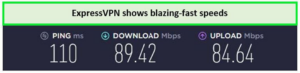
- Has lightning-fast speed on routers with download speeds of 89.42 Mbps and upload speeds of 84.64 Mbps.
- 3000 servers in 105 countries with exceptional bypassing capabilities.
- Five Simultaneous connections.
- Features Unlimited bandwidth.
- Offers a 30-Day Money-back guarantee.
- EUR 6.15/mo (US$ 6.67/mo) - Save up to 49% with exclusive 1-year plans + 3 months free for 12 months of membership.
- It provides exceptional DDOS protection.
ExpressVPN, hands down, is the best VPN for TP-Link routers in Spain. This quick VPN software works on a variety of systems. ExpressVPN takes pride in providing a highly quick and adaptable Internet connection. ExpressVPN is a premium VPN service that boasts over 3000 servers in 105 countries, providing unparalleled access to geographically restricted content. With its lightning-fast speeds and exceptional server quality, ExpressVPN is the ideal choice for anyone seeking a seamless VPN experience. Its Smart Location feature, which automatically selects the best server based on distance, download speed, and latency, makes it easy to use even when switching between networks.
Media Streamer is another feature that sets ExpressVPN apart from its competitors. By changing the DNS address, this tool enables users to access geo-restricted content on devices that don’t typically allow VPN applications, such as Chromecast, Apple TV, game consoles, and Firestick.
In our detailed review of ExpressVPN, we found that it excels at circumventing geo-restrictions. We were particularly impressed with the lightning-fast speeds we experienced when connecting to their New York server. It allowed us to visit multiple streaming websites from all around the world with ease. We were even able to stream the popular Netflix series “Kengan Ashura” in 4K resolution without any lag and access Netflix libraries from Hong Kong and Japan. The process to set up ExpressVPN on our router was really easy. It took us 2-3 minutes, and we were ready to roll. Hence, if you want to save time and use the same IP address, the best solution is to directly install VPN on TP-Link router in Spain.
ExpressVPN’s usage of the Lightway protocol, which enables fast server connections and makes it a good choice for streaming and gaming, is one of its notable features. ExpressVPN is the fastest VPN service accessible, according to our ExpressVPN speed test in Spain on the Ookla platform, with download rates reaching an astonishing 89.42 Mbps and upload rates averaging 84.64 Mbps. ExpressVPN is a solid candidate for the title of best VPN for torrenting with this level of speed consistency.
ExpressVPN’s extensive server network allows users to easily access domestic and worldwide content, as well as unblock numerous streaming services such as CNN, Showtime, ESPN+, BeIn Sports, and Amazon Prime Video. When it comes to unblocking streaming sites, ExpressVPN is more compatible with all streaming platforms.
To ensure privacy and security in Spain, ExpressVPN’s user-friendly applications have passed rigorous security assessments. The service works on a variety of systems, including Windows, Mac OS X, Linux, iOS, Android, Kindle, Xbox, routers, PlayStation, and Firestick. ExpressVPN also offers browser extensions for Google Chrome and Mozilla Firefox to supplement the desktop application.
ExpressVPN is simple to install on your devices, and it supports routers, allowing customers to protect their whole home network. Furthermore, ExpressVPN is compatible with a wide range of TP-Link routers, including the Archer C7, Archer C9, and Archer A7. It also supports other routers from different brands, making it a versatile VPN service. It also has an extensive knowledge base with step-by-step guides to help you set up the VPN on your TP-Link router. You may connect up to five devices with a single subscription, making it a cost-effective alternative for families or groups of friends.
ExpressVPN stresses privacy and does not keep any user activity logs in Spain. To maintain the highest level of security for its customers, the service employs modern encryption methods like OpenVPN, IKEv2, and AES-256-bit encryption. Its Network Lock kill switch function offers an extra degree of protection by immediately halting all traffic if the VPN connection gets lost.
Also, ExpressVPN includes new features like TrustedServer, which assures that all servers function in RAM-disk mode without using hard drives, adding an extra degree of security. Its split tunneling function lets users choose which programs use the VPN, allowing them to improve internet connections by bypassing the VPN for selected applications. ExpressVPN also owns and runs its own DNS servers, which adds another layer of anonymity and protection.
One of ExpressVPN’s finest features is its Threat Manager. It is a VPN ad blocker that uses DNS ad blocking to filter out advertisements, trackers, and dangerous websites. This feature is presently accessible in programs for Mac, iOS, and Linux.
While ExpressVPN might seem more costly than other VPNs, it is a good investment due to its superior features, functionality, and devotion to privacy and security. It has three membership plans: one month, one year, and six months. You can subscribe to its yearly membership for EUR 6.15/mo (US$ 6.67/mo) - Save up to 49% with exclusive 1-year plans + 3 months free. You can also avail a convenient ExpressVPN free trial in Spain and take advantage of a 30-day money-back guarantee.
When it comes to payment options, ExpressVPN takes charge here as well. It allows multiple payment options. You can pay using cryptocurrencies to stay anonymous. You can also use PayPal, Amazon Pay, credit cards, and much more. Its chat support team is friendly and reliable. So, if your TP link router VPN not working with ExpressVPN; you can contact their 24/7 customer support. They offer assistance round the clock and help with all your queries.
For more details about ExpressVPN, you can check our ExpressVPN review Spain. We’ve also written detailed guides on the best VPN for Tomato routers in Spain and the best VPN for Linksys routers in Spain to help you make an informed decision.
Also if you want to check whether ExpressVPN can be installed on a router without a VPN Client in Spain, you can simply refer to our guide.
Pros
- It is compatible with a variety of routers in Spain.
- Comes with user-friendly interfaces.
- It has a global coverage of servers.
- It works well with Netflix, Amazon Prime Video, Disney+, Paramount+, Hulu, etc.
- It has a plethora of security protocols to keep you safe.
- It offers lightning-fast speeds on routers as well.
Cons
- The price is on the higher side.
- It allows very less devices to get connected at the same time.
FAQs – TP-Link router VPN setup guide
Do all TP-Link routers support VPN in Spain?
Yes, all TP-link routers support VPN configuration. TP-Link offers a variety of router models with varying features and capabilities. Some of their routers are specifically designed to support VPN functionality.
To determine if a specific TP-Link router supports VPN in Spain, you can check the product specifications on the TP-Link website or consult the user manual for the router. Additionally, some TP-Link routers may support VPN through third-party firmware such as DD-WRT or OpenWrt.
Can I install a free VPN on my TP-Link router in Spain?
Yes, you can install a VPN on the TP-Link router in Spain. Whether you can install a free VPN on your TP-Link router depends on several factors, including the specific model of your router, the firmware it’s running, and the VPN service you want to use.
What can I do if my VPN doesn’t work with the TP-Link router in Spain?
If your VPN service does not work with your TP-Link router in Spain, there are several troubleshooting steps you can take:
- Check the VPN service provider’s website: Check the provider’s website to see if they have specific instructions for setting up their VPN service on a TP-Link router in Spain. If they do, follow the instructions carefully.
- Set up the anti-malware program: Add the VPN to your antivirus’s trusted programs list, make an exemption for UDP ports 1194 to 1204, and reduce the security level.
- Update the VPN: Install the latest version of the VPN firmware on your router.
- Update the router firmware: Make sure that your TP-Link router is running the latest firmware version. You can check for updates on the TP-Link website and install them following the instructions provided.
- Change the VPN protocol: Try changing the VPN protocol you are using. Some VPN services allow you to switch between different protocols such as OpenVPN, L2TP/IPSec, and PPTP. You may need to experiment with different protocols to find one that works with your router.
- Check firewall and security settings: Make sure that your router’s firewall and security settings are not blocking the VPN connection. Check the router settings and make any necessary adjustments.
- Contact VPN customer support: If none of the above steps works, contact the VPN service provider’s customer support team for further assistance. They may be able to provide additional troubleshooting steps or offer a solution.
If you still cannot get your VPN to work with your TP-Link router in Spain, you may need to consider using a different VPN service or purchasing a router that is specifically designed to work with VPNs.
Conclusion
Congratulations, you’ve successfully set up a VPN on router in Spain! Now you can enjoy a secure and private internet connection for all your devices. By following our comprehensive TP-Link router VPN setup guide, you’ve taken a crucial step towards protecting your online privacy and security in Spain. Now, you don’t have to worry about how to use TP-Link router VPN. Remember to keep your VPN updated and configured correctly to ensure maximum protection.
If you encounter any issues along the way, don’t hesitate to reach out to TP-Link support or consult our guide for troubleshooting tips. With a little effort and the right resources, you can enjoy the many benefits of a VPN, such as accessing geo-restricted content and surfing the web without worrying about privacy breaches.