The new Kodi Version Leia 18 is finally here after 2 years break. It is now available on Google Play Store in all of the Android devices. Kodi in Japan is a media player that streams Movies, TV Shows, Live Sports, and Live IPTV Channels.
Kodi 18 is full of surprises. To the excitement of Kodi users, it has added Gaming Add-on section so you can stream all of the retro games.Today, we will be discussing a detailed guide on how to install Kodi on Android in Japan, Android TV Box, and Android Phones in Japan.
How to Install Kodi on Android in Japan with Google Play Store
Step 1: Open your Android Phone > Go to Google Play Store
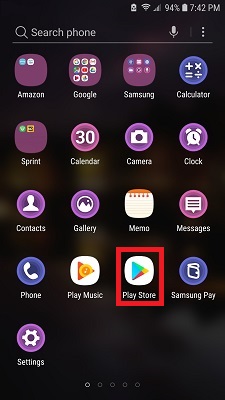
Step 2: Search for Kodi
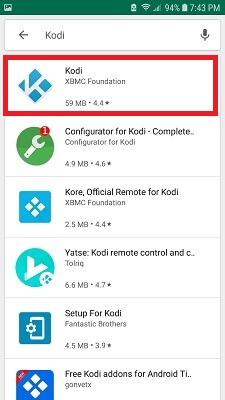
Step 3: Press Install
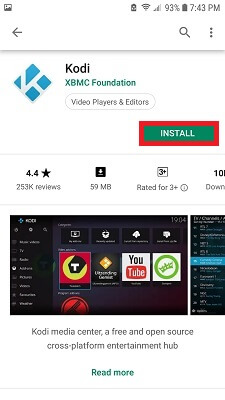
Step 4: The installation process will now install. The new Kodi 18 size is just over 59 MB
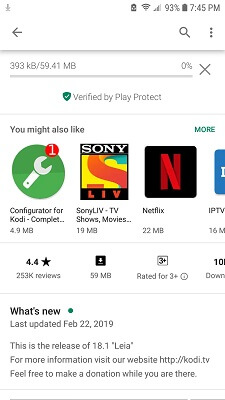
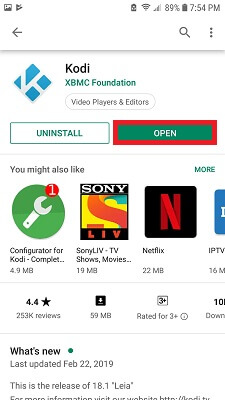
Step 5: Click Open
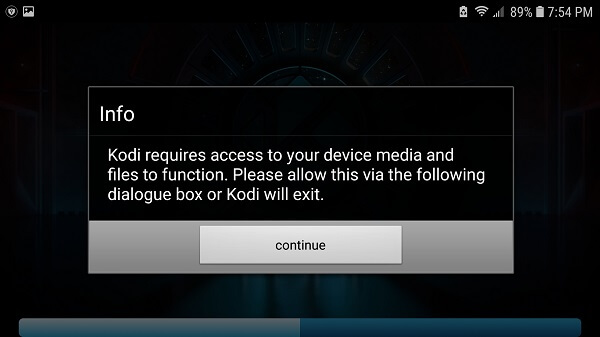
Step 6: A dialogue box will open, so click Continue
Step 7: Kodi will load in a few seconds
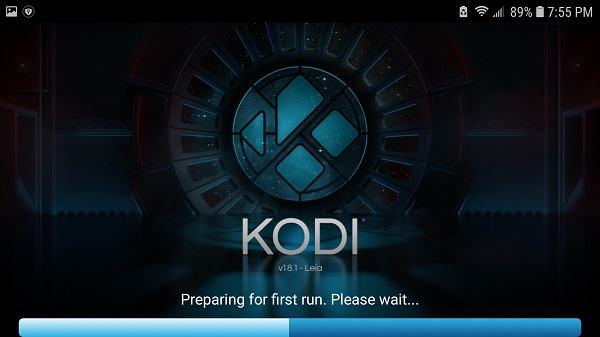
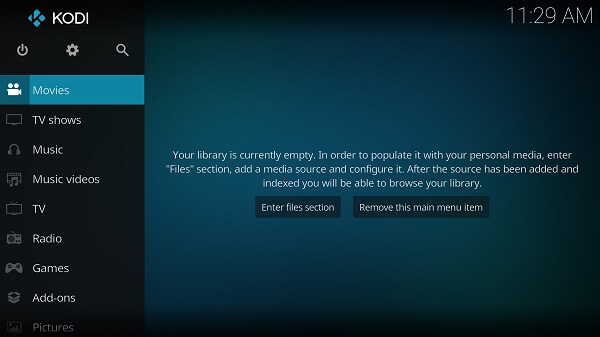
Step 8: Here is the first look of Kodi 18 on Android Phone
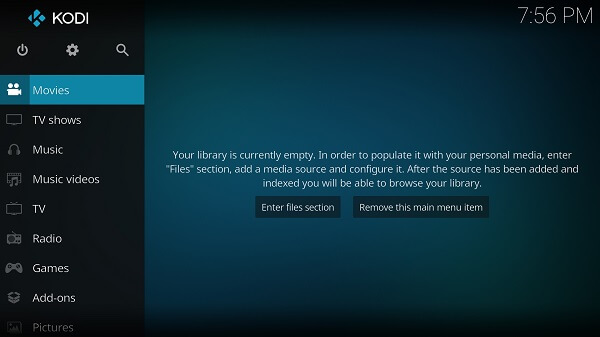
In addition to this, you can enjoy watching tons of traditional channels (BBC iPlayer, 7 Network, Nine Network, HBO Now, Fox Go, CBS, NBC and much more).
Just download the best Kodi addons in Japan on your Android device and step into the world of unlimited entertainment.

How to Install Kodi 18 on Android Devices in Japan Using Kodi APK
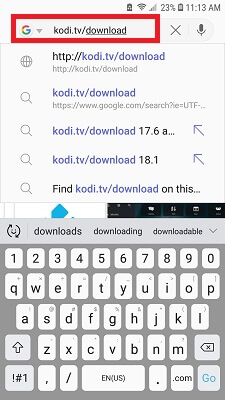
Step 1: Open your Android Phone browser > Paste this URL Kodi.tv/download
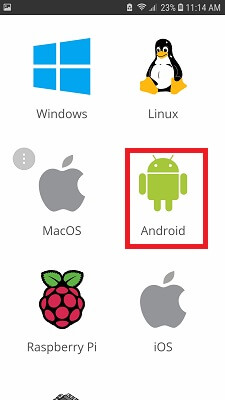
Step 2: Scroll down and click on the Android option
Step 3: In the recommended tab, scroll down to click either ARMV7A (32 BIT) or ARMV8A (64 BIT)
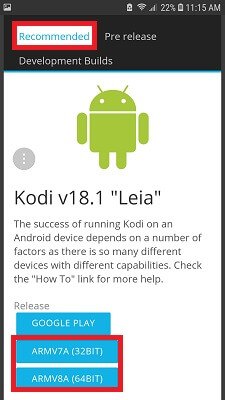
Step 4: Once you click on it, a box will pop-up so click Download
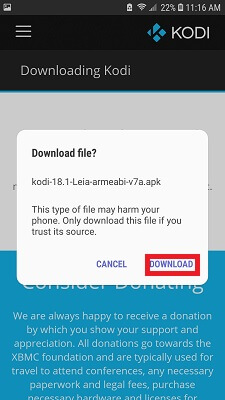
Step 5: The download will now start…
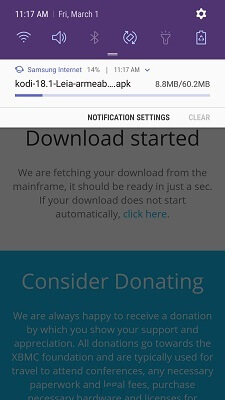
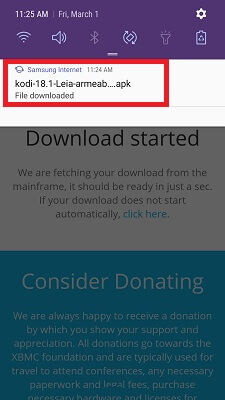
Step 6: Open the file once the download is completed
Step 7: It will ask for you to click Install
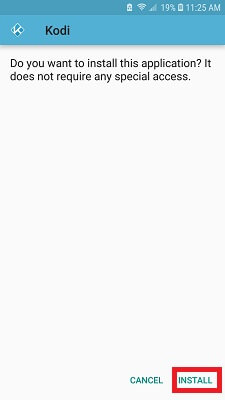
Step 8: It will take a few minutes to install
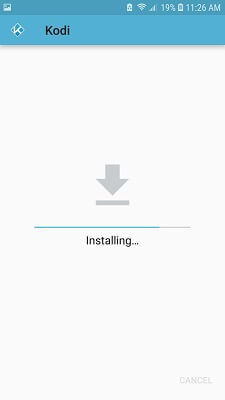
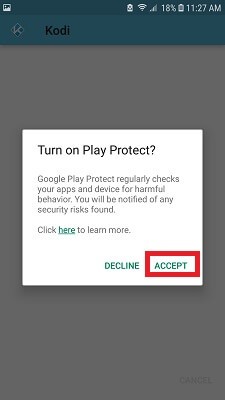
Step 9: Click Accept if your device asks you to Turn on Play Protect
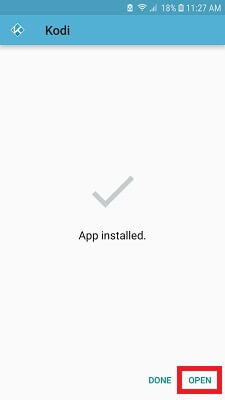
Step 10: Now click Open the app
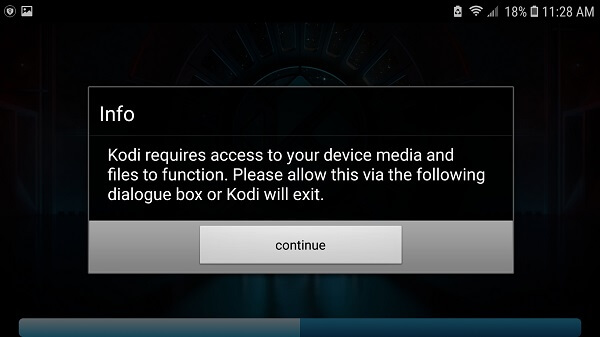
Step 11: A box will open that will that Kodi requires access to your device, click Continue
Step 12: Kodi will now prepare to launch itself
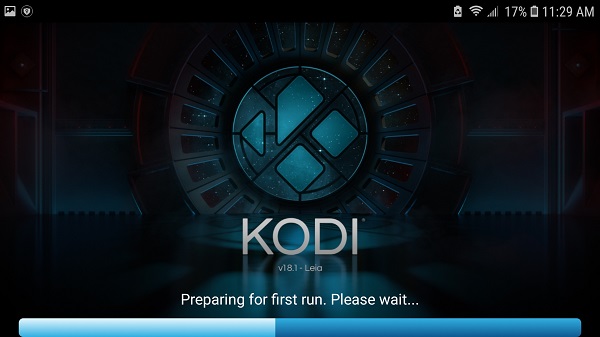
Step 13: There you go, Kodi is installed on your Android Phone
How to Install Kodi on Android TV Box in Japan via Google Play Store
Step 1: All the recent Android Box comes with Google Play Store > Go to Android Box Home
Step 2: Click on Google Play Store which will be present on your main menu screen, or the Play Store will be available under Apps section
Step 3: It will ask you to create Gmail Account. If you already have a Gmail Account then insert Username and Password
Step 4: Once logged in, type Kodi on Google Play Store > Hit Install
Step 5: Now go to Android Box > Click on Apps > Select Kodi
How to Add Kodi Add-ons on Android TV Box in Japan
Here are the steps for how to install Kodi 18 Add-ons on Android Box:
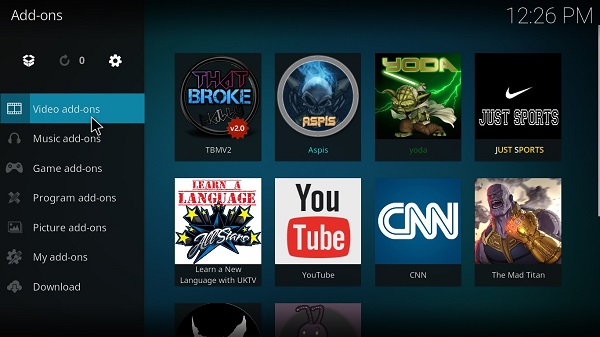
Step 1: Open Kodi on Android TV box -> Go to Add-ons section -> Tap on Box icon at the top
Step 2: Tap on Installation Icon
Step 3: Choose Install from Repository
Step 4: Next, click the Kodi add-on repository -> Video Add-ons.
Step 5: Install the selected add-on.
Step 6: Wait for the ‘Addon enabled’ notification to appear.
Step 7: Go back to your Kodi home screen and click on Add-ons -> Video Add-ons.
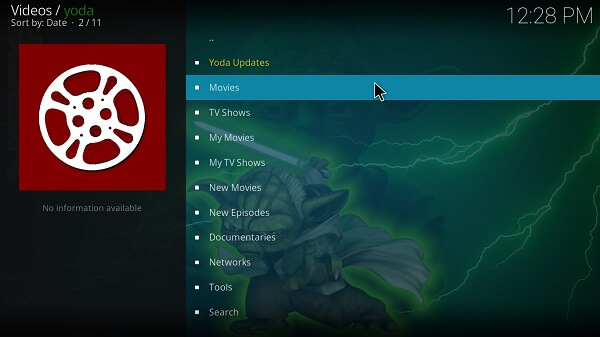
Step 8: Choose the video plugin you’ve just installed.
-
Third-party Kodi Add-ons
Step 1: Open Kodi > Select Settings icon > Then File Manager
Step 2: Double click Add Source > Tap ‘None’ > Paste the Repository URL > Press OK > Name the repository > Press OK
Step 3: Go back to Kodi Home > Click on Add-ons > Box-shaped icon
Step 4: Choose Install from Zip File > Click on the Repository Name > Select the Repository File >Wait for the repository to install
Step 5: Select Install from Repository > Choose the Repository from the list > Select the category of the add-on > Tap on the add-on that you need to install > Press Install
Why do you need to install Kodi on Android in Japan?
Kodi or XBMC stands as fans favorite entertainment service of the era. The service has been delivering top-grade entertainment experience to subscribers on Windows for years.
But now the entertainment platform can be installed on Android devices quickly. If you’re wondering about the perks of using Kodi on Android in Japan, then we have listed the main advantages of Kodi below.
Have a look at them:
- Wide range of media library
- Free of cost service
- Supports torrent & P2P streaming
- One-stop entertainment solution
- Live broadcasting of sports, news and TV shows
How to Download Kodi for Android in Japan
The simplest way for Kodi 18 download for Android is through visiting Kodi website on a browser and downloading its APK. You can get the apk from here: Download Kodi 18 APK
Once you have downloaded, you can run the installation process. Here are the steps on how to download Kodi for Android:
- Open Browser
- Visit Kodi Website
- Scroll down to select Android
- Click on the Recommended tab
- Select ARMV7A (32BIT) or (64-BIT)
- The download will start automatically
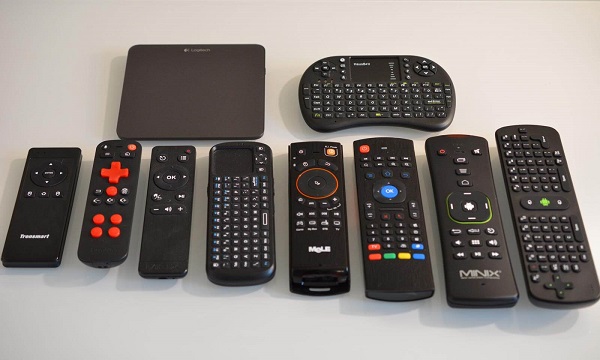
How to Setup Kodi Remote Control on Android in Japan
Step 1: Open Kodi > Click on Settings icon > Then select System Information option
Step 2: Here you will see an IP address which you need to copy that on a piece of paper
Step 3: Now go one step back onto settings again > Click Service Settings > On the left bar select UPnP/DLNA
Step 4: Turn ON ‘Allow Remote Control via UPnP’
Step 5: Again on your left bar, select Control > Turn ON ‘Allow Remote Control via HTTP’
Step 6: Just below, change the Port to 80 > Enter the Username as kodi > No need to enter the Password
Step 7: Under the same Control menu, you also need to Turn ON ‘Allow remote control from applications on this system’
Step 8: Also Turn ON ‘Allow remote control from applications from other system’ > Close the box
Step 9: Go to Google Play Store > Search for Kore, the official Kodi Remote control for Kodi > Hit Install
Step 10: Launch Kore app > Click on the Next button available at the bottom right corner
Step 11: Now you need to manually Configure Kodi remote. Choose the best Kodi remotes for your Android
Step 12: Enter the Media Center Name as ‘Kodi’ > On Address section, type in the IP address that you noted earlier
Step 13: Type 80 in the Port section
Step 14: Enter Username as kodi > Do not enter the password since we never inserted one > Click on the Test button at the bottom
Step 15: Once the Kodi remote is connected to your Kodi, click on Finish button on the bottom > Then select Remote
Step 11: Your Kodi remote will appear
Kodi on Android TV Box Not working in Japan
While installing Kodi or its add-ons, you may frequently be nudged by some errors. We have identified some of the errors you might face along with their solutions.
-
Problem 1: Could Not Connect to Repository
This error might occurs due to multiple reasons. It may be due to failing to connect the internet, slower internet connection, mistyping the Repository URL.
Solution
- Check your internet connection
- Check if you have inserted the Repository URL correctly
- Always paste a slash (/) at the end of the URL
-
Problem 2: Failed to Install a Dependency
This error frequently occurs when you choose to install add-ons from a repository that is currently being updated, or the repository has been shut down.
Solution
- Try installing the add-on from an alternative repository
- If the error persist, then the add-on or the repository itself has been shut down.
-
Problem 3: Check Log Error
If you encounter check log error on your Kodi software, it means you are trying to install a repository or an add-on that has not been updated, or has been shut down.
Solution
Try installing an add-on from an alternative repository. It is likely that the URL of Repo is not currently updated or is temporarily down. Most likely you will be able to resolve this problem when Kodi users install a new repository or wait for the old repository to update.
Kodi Alternatives on Android in Japan
We have used some of the best Kodi alternatives for Android and we’ll like to mention their names so that you could also try testing them at your leisure:
- Stremio
- Popcorn Time
- Plex in Japan
- SPMC
If you feel like giving popcorn time a try, you should also look at these VPNs for popcorn time in Japan to stay protected online.
More Useful Guides
- Kodi on Firestick in Japan: Harness the Power of Kodi with This Installation Guide.
- How to Jailbreak Firestick in Japan: Learn How to Jailbreak Your Firestick Like a Pro.
- Best Kodi Addons in Japan: Dive into the Best Kodi Addons Available.
FAQs for Kodi on Android in Japan
How do I use Kodi on Android in Japan?
Using Kodi on Android in Japan is the same way how you use Kodi on Windows or any other device. The interface and the process to install addons remains the same.
How can I watch Kodi on my Android phone in Japan?
Watch Movies on your Kodi Android phones using video addons in Japan. These addons are available in the official Kodi add-on built-in repository. Once you have installed any of the listed addons, you can stream the latest videos.
What devices can I download Kodi on in Japan?
Kodi is available on every device including Windows, Android devices, iOS devices, Xbox, Linux, Raspberry Pi, and so much more in Japan.
How Do I Get Kodi on My Android Phone in Japan?
The easiest way to get Kodi on your Android Phone in Japan is by Google Play Store. Kodi has an Android app that you can run on any Android device. Another way to download Kodi on Android Phone is through Kodi Android apk. Downloading the apk will automatically install Kodi.
What Channels are Available on Kodi TV in Japan?
Kodi Live TV add-ons consist 1000s of channels from around the world and in many languages. However, the list of US and UK channels are in abundance. These include entertainment channels, sports channel, news channel, movie channels, and so much more.
What is the Kodi app about in Japan?
Kodi is an Android and iOS app that gets you to stream Movies, TV Shows, Live Sports, and Live IPTV channels in Japan. Kodi app does not have pre-installed Kodi third-party add-ons, but it certainly have all the official add-ons that allows you stream Live IPTV channels.
How do I Install Exodus on Kodi 17 in Japan?
Exodus is a video add-on for Kodi in Japan that shows Movies and TV Shows. The original developer of the Exodus Kodi Android i.e. ColdFire has stopped updating Exodus, but many independent Kodi developers still updates it frequently. You can watch high-quality streams with Exodus. Check out our guide on .
Android vs Android TV in Japan
Both have the capacity to run Kodi in Japan, but which one is better? Android TVs are those that have Android operating system running, but there are not many TV’s that run Android OS. Android Phones on the other hand can easily install Kodi because it has Google Play Store installed.
To Wrap Things Up
Kodi Leia 18 is the latest version available for Kodi users and it isn’t yet available on their website. However, we got our hands on the Kodi Lia (18 latest Kodi version) APK File and listed a guide on how to install Kodi on Android in Japan. If you’re looking for a comprehensive installation guide for the IPVanish Android App in Japan , we’ve got you covered. Also, if you’re looking for free VPNs, check out our best free VPN for kodi. And reliable free VPN for android TV box in Japan