If you’re a user that prefers the older versions of Windows i.e. 7, 8, and 8.1, a VPN is extremely important to use. Online threats affect users of all operating systems equally and this is even truer when the OSs in question are no longer receive official security updates.
Microsoft has ended mainstream support for Windows 8 and 8.1 and entirely for Windows 7. Therefore, these OSs are more vulnerable to privacy and security breaches without a VPN. What’s more, there are inherent vulnerabilities within these OSs that can leave your data and online activities exposed.
Thankfully, most VPNs are still supported by these operating systems in Singapore, which means you have a huge variety of available services to choose from. This article will focus on the best VPNs for Windows 7, 8, and 8.1 in Singapore that you can obtain right away to enhance privacy and deal with geo-blocks on websites.
ExpressVPN is the top recommendation because it offers the perfect balance between privacy, speed, and unblocking power for Windows users at SGD9.08/mo (US$ 6.67/mo) - Save up to 49% with exclusive 1-year plans + 3 months free.
Alternatively, you can see this article on Windows 10 VPN services in 2023 in Singapore, if you’re using Microsoft’s latest operating system or check out the free windows VPNs in Singapore.
Top-rated Windows 7, 8, and 8.1 VPNs in Singapore
Here’s a list of VPNs compatible with Windows 7 through 8.1:
1. ExpressVPN – Best VPN for Windows in Singapore
Number of servers: 3000+ servers+ | Server countries: 105 | Simultaneous connections: 5

ExpressVPN is a highly reliable VPN service in Singapore that offers streamlined and lightweight apps for Windows 8, 7, and onward. The provider operates a network of 3000+ servers which are distributed in over 105 countries.
All servers in this network are optimized for streaming and many support torrenting as well. It delivers consistently fast speeds on all servers and this is one of the strongest abilities of this VPN.
The security features it offers are pretty strong and ensure that users of Windows computers with high privacy needs can ensure their protection online. The AES-256 encryption along with a built-in kill switch in the ExpressVPN Windows app further ensures that users stay protected from becoming visible to third parties online.
Users can trust this VPN to keep their privacy secure as ExpressVPN doesn’t store any revealing logs about their users. However, it is relatively expensive with a price tag of SGD9.08/mo (US$ 6.67/mo) - Save up to 49% with exclusive 1-year plans + 3 months free for the 15-month subscription. The plan comes with a 30-day money-back guarantee and 5 simultaneous connections.
Read ExpressVPN’s review for more details.
2. Surfshark – Fastest Choice for Windows 7 or 8 Users in Singapore
Number of servers: 3200+ | Server countries: 100+ | Simultaneous connections: Unlimited

Surfshark is a VPN for users that need fast server speeds in Singapore, close to their regular ISP connection on a Windows system. It consists of an impressive network of 3200+ servers in over 100+ countries. The VPN works efficiently for bypassing censorship on social media websites (if you’re facing this issue in your country) and also for dealing with geo-blocks on streaming services.
Users can enjoy seamless streaming on US Netflix, BBC iPlayer, and more with Surfshark. In addition, Bit Torrent clients and torrenting websites are easily accessible with this VPN even if they’re blocked in Singapore.
On the security and privacy front, Surfshark offers a number of valuable features in its apps for Windows 7 and beyond. These include CleanWeb, WhiteLister, MultiHop, and a kill switch. With these features, you can browse the web or download torrents in complete secrecy.
Surfshark is one of the few VPNs that doesn’t log the personally identifiable information of users. This makes it excellent for users that highly value their privacy and want to remain anonymous and untraceable while using the internet on Windows PC.
It is highly affordable and will set you back only SGD3.39/mo (US$ 2.49/mo) - Save up to 77% with exclusive 2-year plan + 30-day money-back guarantee for the 2-year plans. You can use an unlimited number of devices with a single Surfshark subscription and a 30-day refund period is also given to all users.
Read the complete Surfshark review for more details.
3. NordVPN – Good for Windows Security
Number of Servers: 6000+ | Countries: 61 | Simultaneous Connections: 6
NordVPN offers a well-rounded set of features to enhance the privacy of users on Windows-based platforms in Singapore. The provider has an exceptional range of 6000+ servers in 61 countries, all of which are encrypted with AES-256.
It has good compatibility with US Netflix as well as the majority of popularly demanded streaming apps. The provider also provides access to blocked torrent websites and download files through p2p with fairly strong security.
There are multiple features in NordVPN’s arsenal that boost online privacy on Windows. Some of these include Onion over VPN, kill switch, DoubleVPN, and CyberSec.
The company has a good logging policy for privacy-sensitive users and offers top-notch security for users needing better overall protection on Windows 7, 8, and 8.1.
You can acquire NordVPN for SGD 5.43/mo (US$ 3.99/mo) - Save up to 63% with exclusive 2-year plan + 3 months free for a friend on its 3-year subscription, which comes with 6 simultaneous connections and a 30-day money-back guarantee.
Read NordVPN review for further details.
4. CyberGhost – Decent VPN with Avg Speeds in Singapore
Number of Servers: 11651+ | Countries: 100 | Simultaneous Connections: 7
CyberGhost is another decent service compatible with older Windows versions as well as new ones. This provider has an extensive network of 11651+ servers in 100 countries which are quite effective when it comes to accessing streaming services anywhere in the world.
You can use CyberGhost to watch US Netflix as well as Hulu on your Windows in Singapore. The logging policy is also pretty satisfactory and oriented towards the privacy of users. For Windows, CyberGhost has a kill switch enabled in its app that cannot be disabled even if you wanted it to. This is to ensure users remain protected from any accidental leaks of data. For encryption, the service uses AES-256 encryption like most providers.
Another important benefit of this VPN is that it is located in Romania, which is a country known for its privacy-friendly laws and lack of enforcement against copyright infringement. That makes CyberGhost a pretty good choice for users who regularly download torrents.
The service costs SGD2.76/mo (US$ 2.03/mo) - Save up to 84% with exclusive 2-year plans + 4 months free on the 3-year plan. Subscribers are also given a 45-day money-back guarantee and 7 simultaneous connections.
See CyberGhost review for more details.
5. IPVanish – Unblock Streams Instantly in Singapore
Number of servers: 2200+| Server countries: 75+ | Simultaneous connections: Unlimited

IPVanish is an excellent choice for fans of streaming services. At the same time, it adds some great features into the mix to protect the privacy of Windows users.
There are more than 2200+ servers across 75+ locations within Ivacy’s network. It works with multiple locations of Netflix including the US and Japan and also supports most other geo-blocked streaming services in Singapore.
IPVanish is also quite fast which is why you can stream shows and movies with minimal buffering at high quality. In addition, this also allows it to support fast torrent downloading on many P2P-optimized servers.
The provider avoids data retention of private user information and uses the strong AES-256 standards to encrypt user information while the VPN is connected. Furthermore, it is equipped with features such as DNS Secure, IPv6 leak protection, and kill switch to enhance user privacy.
IPVanish’s dedicated client for Windows 7 & 8 is pretty neat and easy to use and offers a lot of options for users to change preferences and settings.
All plans offer a 30-day money-back guarantee and the ability to connect unlimited devices at the same time. You can get this VPN for SGD4.07/mo (US$ 2.99/mo) - Get 3 Months Extra + Save 77% on 2-year plan which is pretty affordable.
Check out our IPVanish VPN review for more details.
Why do you need a VPN for Windows 7 & 8 in Singapore?
Microsoft’s privacy policies have always been a matter of concern. Both Windows 7 and 8 have had their fair share of security vulnerabilities that leave the data of users open to exploitation. For instance, even after the end of mainstream support for both Windows 7 and 8, Microsoft has been rolling out shady “security” updates with hidden telemetry spyware in the package.
This shows that these operating systems were never designed for prioritizing users’ privacy. Therefore, it is up to the users themselves to take measures that can consolidate your online privacy from inherent flaws in Windows.
Apart from that, the digital footprint you leave behind on the web can be tracked by anyone having the right resources and sufficient motivation to do so, such as hackers, government agencies, or cybercriminals.
VPN, especially those that are proven to keep no logs of users, can keep your identity hidden and anonymous from anyone intending to violate your privacy.
For these reasons, a VPN can be quite beneficial and help boost your privacy and improve website accessibility on Windows.
Setting up a VPN on Windows 7, 8, or 8.1 in Singapore
We are living in an age where installation processes have simplified to a point that even a Neanderthal would probably have no difficulty setting apps upon their systems.
To install a VPN that has a dedicated Windows app like ExpressVPN, all you need to do is to download the setup from the official page of the provider and commence the installation.
But what if you’re interested in a different VPN service to use in Singapore; one that has no dedicated app? For instance, your office might have a private VPN connection of their own which their corporate network is wired to.
In this case, you will need to set it up manually.
Note: You must have a valid VPN subscription for the following processes to work.
Windows 7 manual setup
These are the steps you will need to take:
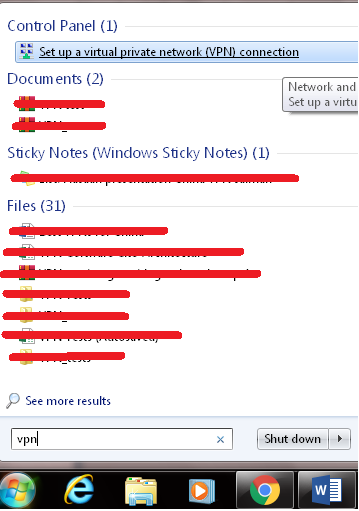
- Open the Start menu and type “VPN” in the search field
- Click on Set up a Virtual Private Network (VPN) Connection on the top

- Enter the VPN server address and type a name for your VPN connection, then check “Don’t connect now”
Note: Ask your VPN provider or network administrator to get the VPN server address

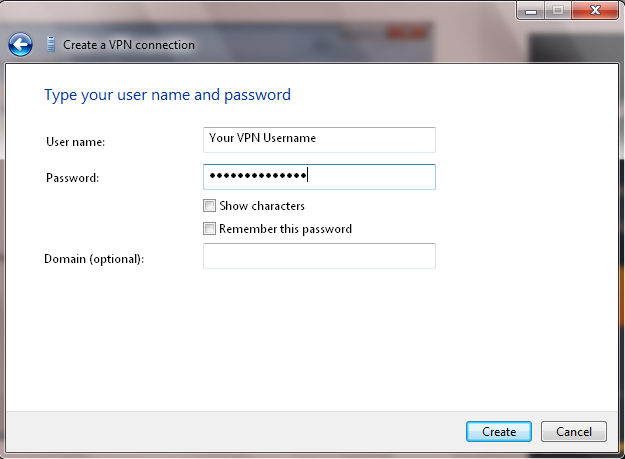
- Now type in your VPN username and password (leave Domain blank) and click create
- Wait for verification of your credentials
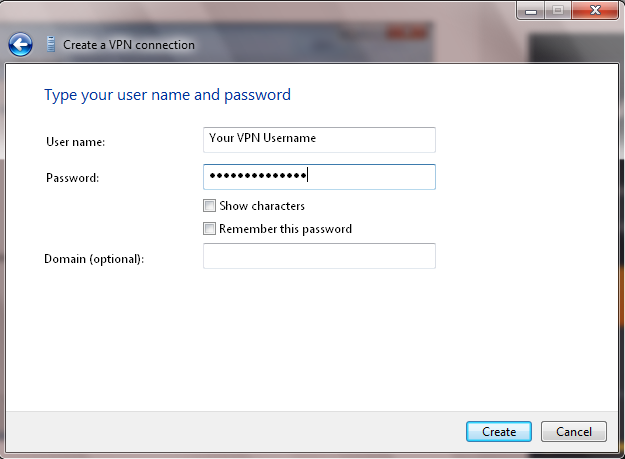
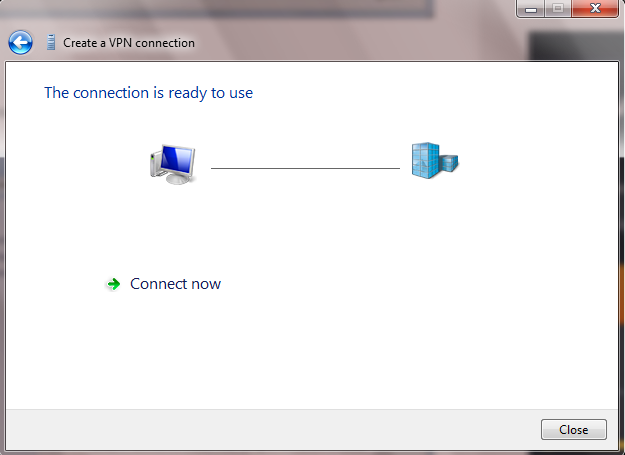
- When finished, you will get the following screen
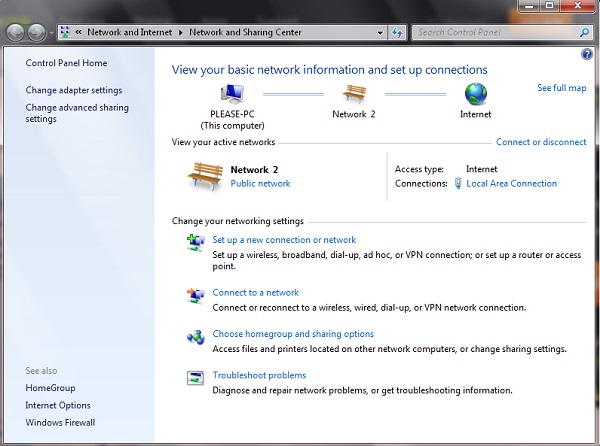
- Now open Network and Sharing Center and click Connect to a Network
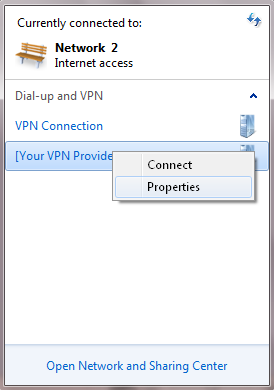
- You should see the VPN you just configured appear on the screen. Right-click on it to enter Properties
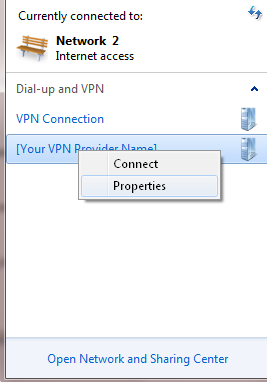
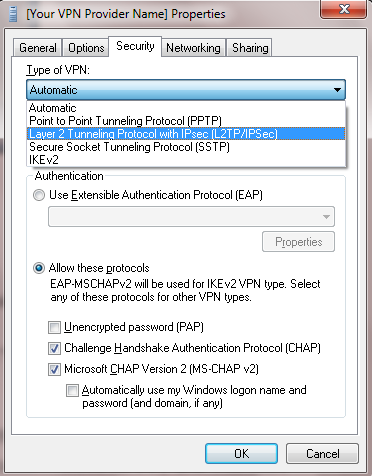
- Select the “Security” tab and choose the type of VPN (preferably L2TP, SSTP, or IKEv2, as PPTP, is not very secure)
- In data encryption, choose “require encryption” (you may also choose other options, but it depends on your VPN. Consult your Network Admin/VPN provider for help)
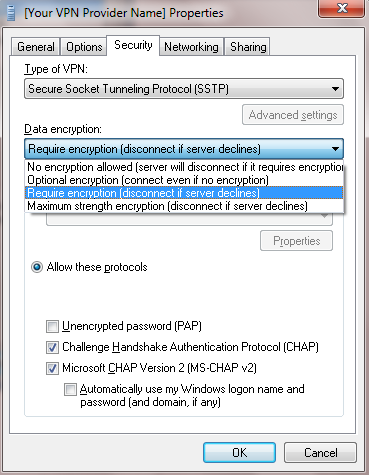
- Check Challenge Handshake Authentication Protocol (CHAP) and Microsoft CHAP Version 2 (MS-CHAP v2)
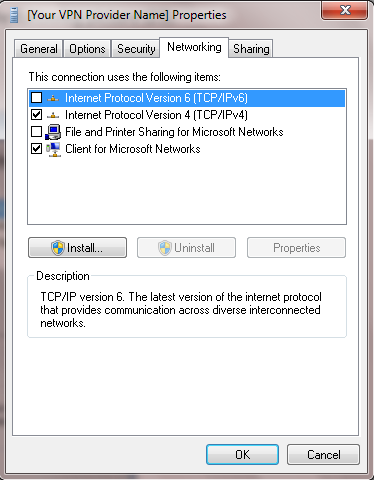
- Click on the Networking tab and uncheck “Internet Version Protocol 6 (TCP/IPv6)” and “File and Printer Sharing for Microsoft Networks”
- Now open your Network Connections, right-click on the VPN you have set up, and press Connect
- Enter your VPN username and password when prompted
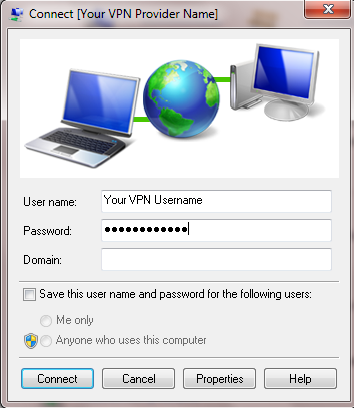
- Congratulations! You’ve set up your VPN
Windows 8 or 8.1 manual setup
-
Open the Charms bar > Search > Settings.
-
Type VPN in the Search box.
-
Click on the Set Up a Virtual Private Network (VPN) Connection button in the search results.
-
Now enter the following information:
-
The IP address of the VPN server you want to connect to (contact support of your VPN find out the address).
-
In the Destination Name text box, simply enter a name you want to give to this VPN connection
-
If you want to allow other users on your Windows 8/8.1 PC to use this connection, select the Allow Other People to Use This Connection check box (this is optional).
-
Click Create.
-
-
You can now connect to this VPN connection from the Networks heading in Charms bar.
Instructions for OpenVPN Setup
Note: This method works for all versions of Windows
OpenVPN is the most popular VPN protocol that every leading VPN service uses today, owing to its open-source nature, a wide degree of auditing, and speeds and security.
Since OpenVPN is an open-source VPN protocol, Windows does not offer native support for it. What you will need is a third-party program called OpenVPN GUI, which you can download here.
Once downloaded, follow the steps below to install it on your Windows:
- Click the Next button to start the installation
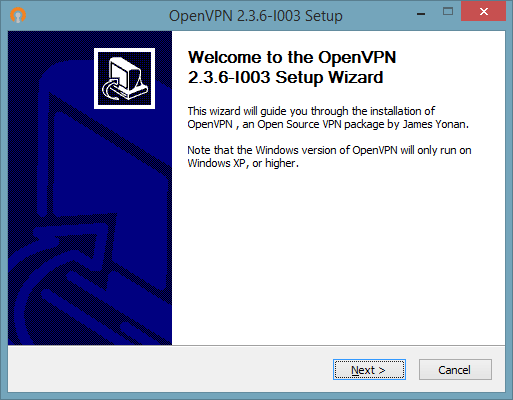
- Press the I Agree button
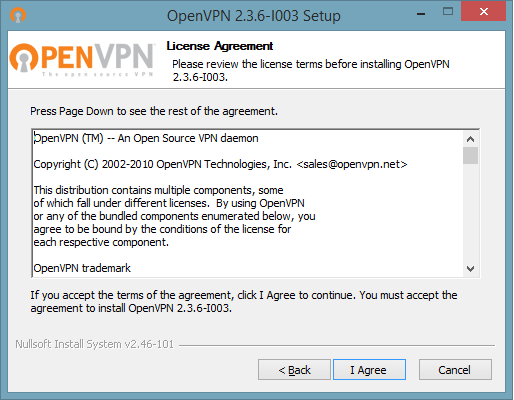
- Click Next
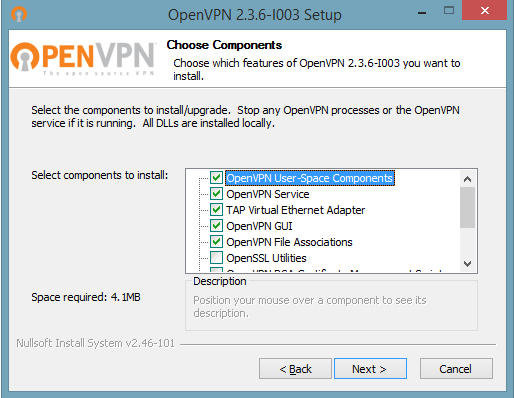
- Choose a destination and press Install
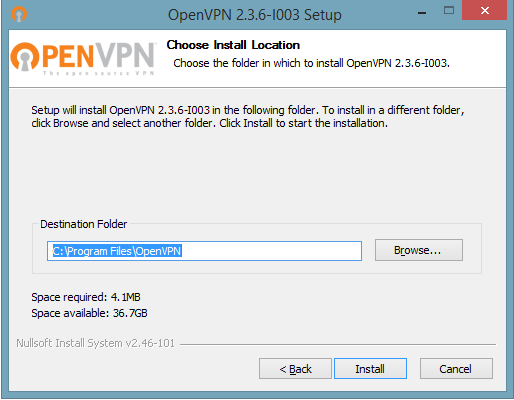
- If you get the following prompt for installing the TAP-Win32 Adapter, press Install
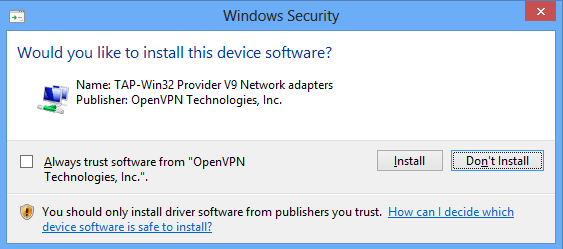
- Press Next when the installation is complete
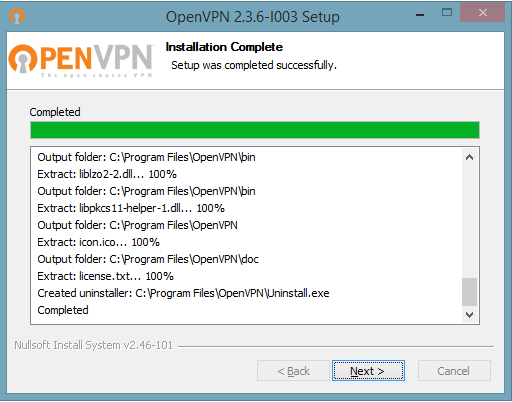
- Click Finish and Start OpenVPN GUI
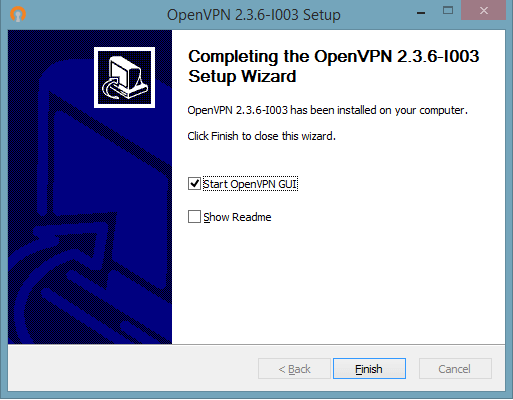
Now, you will need to download .ovpn config files which you can obtain from the official page of our VPN provider.
Once downloaded, extract the files to C:\Program Files\OpenVPN\config.
The OpenVPN GUI lives only in your taskbar. Right-click on its icon in the taskbar and choose a server and click connect.
This finishes the OpenVPN setup on your Windows PC.
Conclusion
Although Windows 10 has superseded Windows 7 & 8, it is still a widely used operating system at the both home and corporate level. Nonetheless, since they are both outdated and Microsoft’s privacy policies are hardly worth trusting, it is up to the users to use a VPN and to shield themselves from online privacy threats.
ExpressVPN is the best available Windows 7 & 8 VPN in Singapore that offers massive privacy-guarding benefits for very reasonable costs. Therefore, if you are a user that worries about their privacy being out there in the open, the aforementioned VPN providers are all set to keep you safe from privacy violations.
If you’re thinking what is the best free VPN in Singapore for this, then you might want to check our free VPN guide.