How to Set up Surfshark on Android [Easy Guide]
- Updated: September 28, 2023
- 0 User Reviews
- Gerald Hunt
Cyber threats and crimes are increasing day by day. Advertisers, spies, and government agencies track your activities and collect your data online. You are not safe on any platform and are even more vulnerable on public networks.
A Virtual Private Network (VPN) has an encrypted server to hide your identity and activities on the network. Android users are prone to data breaching threats that’s why they need privacy protection and data security. We recommend Surfshark — one of the best VPNs for Android, which offers unlimited simultaneous connections and compatibility with almost every device also, Surfshark offers an affordable best mobile VPN app with reliable unlimited simultaneous connections
Surfshark on Android has versatile features like a kill switch, CleanWeb, bypasser, end-to-end encryption, and a strict no-logs policy that ensures complete security and privacy on Android devices. Moreover, android users are entitled to get an exclusive Surfshark free trial for 7 days. Check out our Surfshark review to learn more about its features and services.
Want to get it installed on your Android device? Read on to learn how to use Surfshark on Android:
How to Set up Surfshark on Android – Easy Steps
Surfshark is one of the best cheap VPNs for Android devices, providing top-class features at budgeted Surfshark prices . You should follow the simple steps given ahead to setup Surfshark on Android phone. But first, you’ll need to subscribe to this VPN service. Click here to do that.
- Install Surfshark on Android device
- Log into the Surfshark app on your Android device
- Connect to the Surfshark VPN on Android
- Choose server locations of Surfshark on Android device
- Manage Surfshark features on your Android device
- Manage Surfshark settings on your Android device
- Check if your Connection was successful on Android
1. Install Surfshark on Android Device
Follows these steps to setup Surfshark on Android:
Step 1: Search for the Play Store App and launch it on your phone.
Step 2: In the search bar, type Surfshark and select the result that appears at the top of the list.
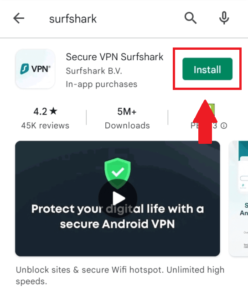
Step 3: The Surfshark VPN page will be loaded. Press the “Install” button to start the installation process. The app will be downloaded in a few minutes.
2. Log into Surfshark App on Your Android Device
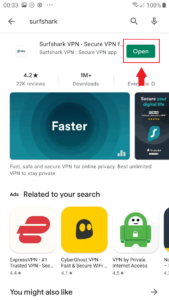
Step 1: After the installation completes, you can find its icon on the home screen. Open the Surfshark VPN app.
Step 2: You can simply Log in to the app if you have purchased a Surfshark VPN subscription. If you haven’t, click here to subscribe to Surfshark.
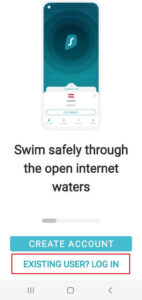
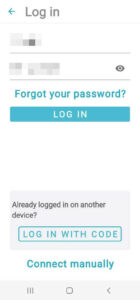
Step 3: To log in, enter your email address and password that was used during the registration process. Then tap on “Log In.”
3. Connect to the Surfshark VPN on Android
After you log in, you will find Surfshark VPN’s home page appearing on the screen.
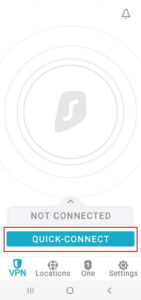
Step 1: You need to connect to the Surfshark server available. Press the “Quick Connect” button in blue, and Surfshark will connect you to the fastest server available on the network.
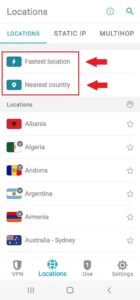
Step 2: If not, then you can always click on the Locations option and choose among the “Fastest server” and “Nearest country” options from the list.
Step 3: After you press the button, the system will ask you to permit Surfshark VPN to set up the VPN connection. If you don’t allow the app, Surfshark will not able to build and manage the VPN connection. Press “Ok.”
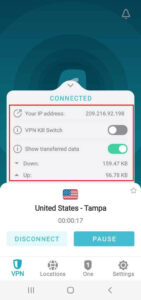
Step 4: Once your app connects to the VPN server successfully, it shows the connection status on the main screen. You can observe the Surfshark logo and a key symbol on top of the screen, indicating that you are connected to the Surfshark VPN.
To disconnect the VPN, simply click the “Disconnect” button on the screen.
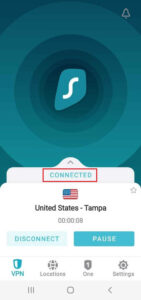
Step 5: To check more information about the VPN connection, you can click on the white arrow above the VPN connection status. You can get your IP address, the total amount of data transmitted successfully, and a kill switch feature option. That’s it! This is how to use Surfshark on Android device for daily online activities.
4. Choose server locations of Surfshark on Android Device
Surfshark has a large server network with over 3200 servers spread across 100 countries. It allows you to connect easily to any location of your choice.
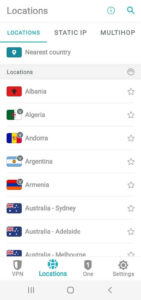
Step 1: In your Surfshark VPN app, go to the Locations tab. You will get a complete list of locations. Pick any location you want. Then, click on the flag icon of the country you want to connect to. Your app will quickly connect you to that location selected.
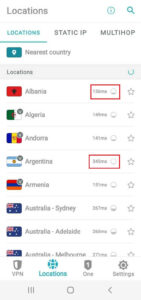
Step 2: By pressing the speedometer symbol, you can see the location latency and traffic. It will show the current latency for every location in the list. A small latency value represents a reliable and stable connection for a server.
The bubble icon on the right of each location server tells how many users are connected to the servers working in that location.
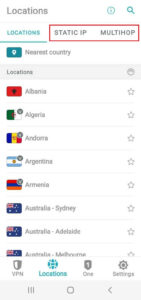
Step 3: You get two other tabs in the locations section. You can select either Static IP or MultiHop, both available on the top of the Surfshark VPN app while choosing the server.
The functionality of these two options is:
- Static IP: Surfshark would assign you the same IP address on every connection.
- MultiHop: You will be connected to the network via two different servers located in two distinct locations, adding extra security layers.
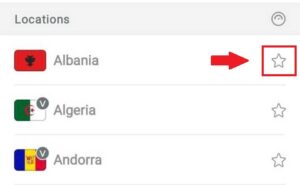
Step 4: You can also save your favorite server locations in the Surfshark app for the future. Simply press the star on the right of the locations. This server will be added to your Favorite servers list.
5. Manage Surfshark Features on Your Android Device
Surfshark offers world-class and unique features for privacy protection and security enhancement. In the VPN Settings section, Surfshark offers multiple useful features. These include:
- CleanWeb: Blocks malware-infected files, malicious sites, ads, and trackers before loading. It invalidates phishing attempts and restricts spammers.
- Kill switch: Protects your online activities from leaking by disconnecting you from the internet if the VPN connection is lost.
- Bypasser: A split tunneling mode that lets you decide which apps go through the VPN tunnel and which ones use your regular connection.
6. Manage Surfshark Settings on your Android Device
The Surfshark Android VPN lets you set the app to your preferences. It provides all settings required to customize and troubleshoot your VPN connection.
Step 1: Go to the “Settings” page in your Surfshark app.
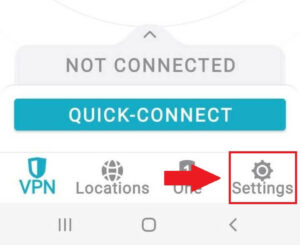
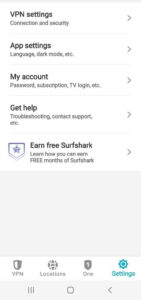
Step 2: In the Settings menu, you get the VPN Settings, App Settings, My Account, and Get Help tabs. The role of each one of these has been discussed below:
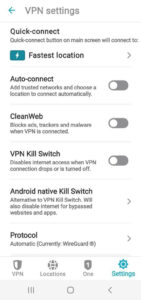
- VPN Settings: In this tab, you can enable auto-connect mode and select the networks to connect to using this mode. You can also turn on the kill switch feature, choose your desired protocol, and use Bypasser.
- App Settings: You can change the app’s language, find the app’s version, and turn dark mode on or off.
- My Account: In this tab, you get your account details, including your email ID, login code, and expiration date of your plan.
- Get Help: This tab offers the most useful troubleshooting and VPN performance adjustment options.
Within the VPN Settings tab, you also get the Advanced Settings option, which has the following other options:
- NoBorders Mode: With this mode, you can easily bypass geo-restrictions to access banned and censored content from other countries.
- Invisible on LAN: Your device can become invisible to other devices by activating this mode.
- Override GPS Location: You can make your GPS location match your VPN connection location by using the Override GPS location mode.
- Use Small Packets: Your data packets will be divided and transferred into smaller parts, providing improved speeds.
- Rotating IP: It rotates your IP address even though your location stays the same.
Step 3: Move to the ACCOUNT section. You can get your subscription details and an option to change the password of your Surfshark account. You can also enable the TV login here to log in to the Surfshark app for TV easily.
Step 4: The next tab is the Help Desk. You can find all previous chats with the Surfshark agents. In case of any technical issues, you can provide diagnostics from your Surfshark app. You can also review Surfshark’s privacy policy and terms of service.
7. Check if your connection was successful on the Android
After setting up the VPN, we highly recommend you verify the successful connection. You can check your connection by performing an IP leak test and a DNS leak test available on Surfshark’s official website.
Why Should I Use Surfshark on Android?
Surfshark is one of the budget-friendly VPNs with premium and unique features. It works with all major operating systems like Surfshark on Mac, Linux, Windows, Android, etc. You must use Surfshark on Android because it is equipped with advanced privacy protection and powerful security features With CleanWeb, browse the web with peace of mind, knowing your virtual space is spotless making it the top VPN with CleanWeb.
Surfshark on Android blocks ads, malware, trackers, and spammers with its CleanWeb feature. It lets Android users bypass geo-restrictions and access censored content from anywhere in the world. Using the kill switch feature, Surfshark protects user identity and prevents accidental exposure when the VPN connection drops by cutting off the internet connection. Moreover, it’s the best multi-device VPN that allows unlimited simultaneous connections on a single subscription account.
With its split tunneling feature, you can divide a load of apps by choosing the networks to route them. Android users also get a unique Override GPS Location feature which sets the user location to be the same as the VPN server location. On the Android version, you can select the type of encryption, protocols, and settings you want in your VPN connection.
Besides this, the android app also lets you watch different Netflix libraries with Surfshark, along with other streaming services like HBO Max, Hulu, Amazon Prime Video, and more. Moreover, Android users can get Surfshark free trial for 7-days. This allows users to gauge its services before committing to its long-term plan.
Why is Surfshark on Android not working?
Surfshark may not work on your Android when some apps might have taken over network control in your device. As we have different types of connections in our homes, schools, and workplaces, some of these networks may have particular restrictions that can block the VPN connection.
If you are facing connectivity issues on your Android device, you can resolve them in a few simple steps:
- Change the Installation Technique: You can download the Surfshark VPN app either from Google Play Store or. APK installable file directly. If you have downloaded it from Play Store, try installing it through the .APK file this time or vice versa.
- Change the Server: If you are trying to connect to a specific server location, it may be experiencing some issues. Therefore, you should always try testing different server locations to ensure connection validity.
- Modify the Protocol for Connection: Different VPN protocols run on different network ports. A particular port may be blocked in your home, school, or office, resulting in connectivity issues or complete connection failure. From Settings, go to the Advanced tab and click on Test all the protocols available in the app.
- Set Custom DNS: Configuring custom DNS on a device can improve the connection speed, fix connectivity problems, and assist you in connecting to the VPN.
- Disable IPv6: Surfshark doesn’t support IPv6, and enabling it can cause server issues. As disabling the IPv6 feature is not directly possible on Android devices, you should contact your ISP to do this job.
- Upgrade or Reinstall the Application: Your Surfshark app could be outdated and lacking the latest support and features. Therefore, update or fully reinstall the latest version of the app.
- Disable Malfunctioning Applications: Sometimes, antivirus software or other VPN apps interfere with the VPN and complicate its working. We recommend you disable your antivirus program and uninstall all other VPN apps to eliminate interference.
If your Surfshark Android not working despite following the above steps, you can go through our Surfshark not working guide for more detailed insights.
Streaming services you can access using Surfshark
We tested around 50+ servers including US, British, Canadian, Australian.and other regions. As a reulted we unblocked this entire list of streaming platforms with Surfshark:
| American | British | Canadian | Australian | Other Regions |
| Amazon Prime Video | Sky TV | CBC Gem | Tenplay | German TV |
| Showtime | BBC iPlayer USA | Crave TV | 9Now | DStv |
| Disney Plus | Channel 5 | City TV | Foxtel | Hotstar |
| ESPN+ | Sky sport | Hayu | Stan | Rai TV |
| MLB.tv | Eurosport | – | Optus Sports | ViuTV |
| YouTube TV | ITV | – | Kayo Sports | Telecinco |
| MTV | Channel 4 | – | – | SonyLIV |
| Vudu | BT Sport | – | – | – |
| Crackle | UK TVPlayer | – | – | – |
| beIN Sports | – | – | – | – |
| Sling TV | – | – | – | – |
| Bravo TV | – | – | – | – |
FAQs – Surfshark on Android
Does Surfshark work with Android?
Yes, Surfshark works with devices with up-to-date Android OS. The Surfshark app is available on Google Play Store for Android versions below Android 5 (Lollipop).
Is Surfshark the safest VPN for Android?
Yes, we can consider Surfshark to be the safest VPN for Android because it strictly follows a no-log policy, protects user privacy, and ensures encrypted data. It has been audited by the German cybersecurity firm, Cure53, which declares it safe after testing.
Is Surfshark free on Android?
Yes, you can use Surfshark free for 7 days on all Android devices. This free trial is not available for every OS, which makes it useful for Android users. To access the free trial plan of the Surfshark app, follow the simple steps:
- Download the app via Google Play Store from your device.
- Launch the Surfshark app and select “Start Free Trial.”
- Create your new account with valid credentials and choose the 12-month plan option.
Conclusion
Surfshark is well-known for its versatile features and robust services on almost every platform. Surfshark on Android, tablets, and smart TVs brings exciting and flawless services at an incredibly low price. If you’re looking for a comprehensive installation guide for the IPVanish Android App in USA , we’ve got you covered.
With privacy protection and military-grade encryption, Surfshark is becoming an ideal VPN for Android devices and as well as for different devices as well like Surfshark on Nvidia Shield and others. It has standard functionalities like no-logs, modern protocols, and unlimited bandwidth.
We recommend you try its 7-day free trial available for Android phones. Explore the VPN model yourself before buying a proper subscription plan today! If you are interested in free options, read Free VPN for Android in USA we compiled this guide for you.