
Finding your computer’s IP address is the first step to setting up a network or troubleshooting a connectivity issue. Different IP addresses exist for your computer, each with its public IP address. To simplify the process, here’s a guide on how to find IP address on Mac in Italy.
The IP address of your Mac isn’t just a random sequence of numbers; it represents the location of your computer, which is typically where you are located. This unique identifier provides essential information about your geographic placement in the digital world.
So, in this article, I’ve explored various methods to swiftly locate both internal and external IP addresses. I’ll share how to use your Mac’s System Preferences for a quick find or dive deeper with the Terminal for those who prefer command-line tools.
For privacy enthusiasts who wish to secure their online identity, a premium VPN can mask your real IP, providing an extra layer of security. Join me as I guide you through each step, ensuring you can keep your network savvy on point.
Quick Overview – How to Find IP Address on Mac in Italy
Whenever you connect your Mac to the Internet, your ISP assigns it a unique address called an IP address. Each device connected through the same connection has a different address.
Precisely, you can neither share nor browse online without an IP address. Therefore, whenever you need to work on anything related to network connection on your MacBook, you need to know your IP address on Mac.
There can be two types of IP addresses in Italy on your Mac: an external (public) and an internal (local). The ISP provides the external IP address, while the internal one is what your home network uses to connect to different devices.
Here is how I determine both:
| Method 1 | Method 2 | |
|---|---|---|
| How to find your external (public) IP address on Mac | Use the System Preferences | Check your external (public) IP address online |
| How to find your local (internal) IP address on Mac | How to find your IP address on OS X 10.5 and newer | Finding your internal IP using the Terminal |
Let me talk about these methods in detail in later sections:
How to Find IP Address on Mac in Italy [Step-By-Step Guide]
If you are wondering how to find your IP address on Mac in Italy, here is how you do it:
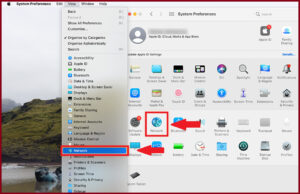
- Select System Preferences from the Apple menu.
- Select Network from the View menu or click Network in the System Preferences window.

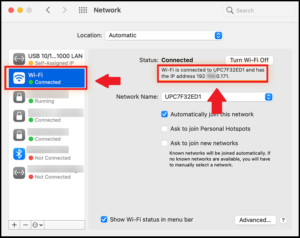
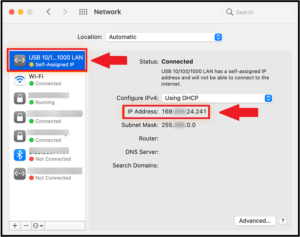
- Select your Network Connection from the left-hand menu.
- Connecting through Ethernet or USB will display your local IP address.
- Your IP address is present below the connection status for a Wi-Fi connection.
How to Find Your External (Public) IP Address on Mac in Italy
Finding your Mac’s public IP address is a straightforward process. This unique identifier is how your device is recognized on the internet and is assigned to you by your ISP. Whether you need to configure network settings or use remote access services, knowing your public IP address in Italy is crucial.
So, if you are interested in determining how to find an IP address on Mac 2024, there are two methods to do it:
Method 1: Use System Preferences
If you want to know how to find the Macbook Pro IP address without using third-party apps, look for it in your System Preferences. This is the most straightforward method, which does not require anything but your MacBook.
Here are the steps you can follow to know your external IP address in minutes:
- Turn on your Mac and sign in to your local user account.
- Select the Apple menu in the top-left corner of your screen. Opt for the SystemPreferences option from this pane. You can also select System Preferences in your Dock at the bottom of your screen.
- In the System Preferences box, select the Network option.
- On the left, you should see a list of your networks. Select the option with a green dot next to its name. This is what we refer to as Wi-Fi or Ethernet. This option will choose a network that is currently connected and online.
- When you see the right panel, you’ll see a text displaying your external IP address under the “Status: Connected” column (public).
Method 2: Check Your External (Public) IP Address Online
You may also use your browser to determine your IP address. However, web browsers can only find your public or external IP address, not your internal one. Here is how you find your external IP Address on Mac:
- Open any web browser on your Mac.
- Type in the search bar “What’s my IP address?” and enter.
- Your search engine will display your public/external IP address readily.
How to Find Your Local (Internal) IP Address on Mac in Italy
Finding a Mac’s local (internal) IP address is essential for network management and troubleshooting within a local network environment. On a Mac, the IP address can be found using either System Preferences or Terminal commands, depending on the user’s preference for a graphical interface or the command line.
Method 1: How to Find Your IP Address on Mac Using System Preferences
Follow the steps below to find your local IP address via System Preferences:
- Launch the Apple menu and tap on “System Preferences.”
- In the left panel, click on “Network” and then choose “Wi-Fi” or “Ethernet” depending on your connection type (wireless or wired).
- Select “Details” next to the network you are currently connected to.
- Scroll down to view the local IP address of your Mac.
Method 2: Finding Your Internal IP Using the Terminal
For those who prefer using Terminal, the Mac IP address terminal command can be used:
- Open Spotlight search and type “Terminal.”
- Press Enter.
- Type “ipconfig getifaddr en0” and press Enter to display your local IP address.
- To see your public IP address, type “curl ifconfig.me” and press Enter.
What is an IP Address?
An IP address, which stands for Internet Protocol address, is a unique identifier assigned to each device on a computer network that uses the Internet Protocol for communication. It has two main roles: it identifies the host or network interface and provides its location within the network. Like a house address for a device, it facilitates the transmission and reception of data online.
There are two types of IP addresses to be aware of:
- Private IP Address: Used within a private network, allowing devices to communicate with each other internally.
- Public IP Address: Used for external Internet communication and unique across the Web, assigned by the Internet Service Provider (ISP).
A public IP address is visible to any device on the internet and is essential for your Mac to communicate with websites and other services. Contrarily, a private IP address is only visible within your local network, facilitating connections between devices on your home or office network. Your router or network administrator typically assigns these addresses.
Stop Everyone From Finding Your IP Address on Mac in Italy
Cybercriminals and websites can potentially track you online through your public IP address, posing a significant risk to Mac user’s privacy. Fortunately, a simple and free solution to safeguard yourself from such threats is using the best free VPN for Mac in Italy.
A secure VPN service in Italy is the best way to secure yourself from being tracked. A virtual private network is a tool that passes your entire online traffic through a server, making it impossible to know your actual IP address. Also, if you want a different IP, you can learn how to change your IP address on macOS and enjoy using an international IP.
I’d highly recommend using ExpressVPN due to its robust security and top-notch encryption that can be enabled with a single click. Moreover, the VPN offers a 30-day money-back guarantee that allows you to protect your IP on macOS risk-free for an entire month.
Understanding IP and MAC Addresses
IP addresses and MAC addresses are distinct identifiers in networking, each serving a different purpose:
- An IP address is necessary for routing internet traffic to and from your Mac and can change based on the network connection.
- A MAC address, or Media Access Control address, is a permanent hardware identifier embedded in your Mac’s Network Interface Card (NIC) by its manufacturer. It is utilized to identify devices within a local network and does not change.
Knowing these differences is helpful when setting up networks or diagnosing connectivity issues.
What Do Redditors Say About Finding Your IP Address on Mac?
According to a Reddit thread, here’s how you can find your IP address on a macOS device:
- You can find your IPv4 address on your Mac by alt-clicking on the WiFi symbol in the top right corner. This will show you some information, including IP, channel, and mode.
- You can also find your local IP address by typing ‘in ifconfig’ via your terminal. The first line starts with 192.168.0. is your IP address.
- Or, you can just google “What’s My IP?” to find your public IP address.
Let me tell you, finding an IP address on Mac is a breeze. You don’t even need to be a tech wiz to do it. There are two ways to go about this. The first way is super simple – all you have to do is click on the Wi-Fi symbol in the top right corner and then option-click. This will show you a bunch of information, including your IP address. Easy peasy, right?
The other way to find your IP address is by using the ‘ifconfig command’ in the terminal. This might sound a bit scary if you’re not used to the terminal, but trust me, it’s not that bad.
More IP Address Guides on VPNRanks
Now that I’ve answered your ‘How to find my VPN IP address on macOS’ query, here are a few IP address guides you’d find informative as well:
- How to find your IP address on Linux in Italy
- How to change the IP address on Android in Italy
- How to find someone’s IP address on Mac in Italy
- MAC address vs IP address in Italy
- What is your private IP address in Italy
FAQs: How to Find IP Address on Mac
What is the shortcut to finding an IP address on a Mac in Italy?
You can use the Terminal application to find your IP address on a Mac quickly. Enter the command “ifconfig” to display network information, and locate your IP address in the “inet” section for network interfaces.
Is an IP address the same as a MAC address?
No, an IP address is not a MAC address. MAC address is the address provided by the NIC Card’s Manufacturer. It is the private information that gives the computer’s physical address and identifies it on a network. However, your ISP provides the IP address that helps you identify the connection with which you connected your device.
What does a MAC address look like?
A MAC address consists of 6 pairs of hexadecimal digits, separated by colons or hyphens, like “00:1A:2B:3C:4D:5E”.
Can I change the IP address of my Mac in Italy?
Yes, you can manually change your Mac’s IP address in Italy through system settings or tools like VPNs, proxies, or the Tor browser. This can help protect your privacy online.
Does a Mac have IP addresses?
Yes, Macs have both public and private IP addresses. Your router assigns the internal (private) IP address, while the external (public) IP address is provided by your ISP.
How can I find my public IP address on a Mac in Italy?
Your public IP address can be found by visiting websites like whatismyipaddress.com or searching “What is my IP address?” on Google. However, for security reasons, this information should be kept confidential.
How can I find my router’s IP address on a Mac in Italy?
To find your router’s IP address on a Mac in Italy, go to System Preferences > Network, select your active network connection, and it will be displayed as the “Router” in the network settings.
Conclusion
You see, you can easily find IP addresses on Mac. However, the procedure for determining internal and external IP addresses differs greatly. You need the Mac IP address to make changes in the Network with which your device is connected. Therefore, follow the correct procedure to get the right address.
Also, do not confuse the IP address, which is the address of your device over the Network, with the Mac address telling you the computer’s physical address.
I hope this article helped you determine how to find IP address on Mac in Italy. In case you have any other questions, feel free to comment below. I would be happy to help!